How to Use the Self-Timer — Prevent Shutter Shake and Get in the Photo
Published Jun 27, 2026
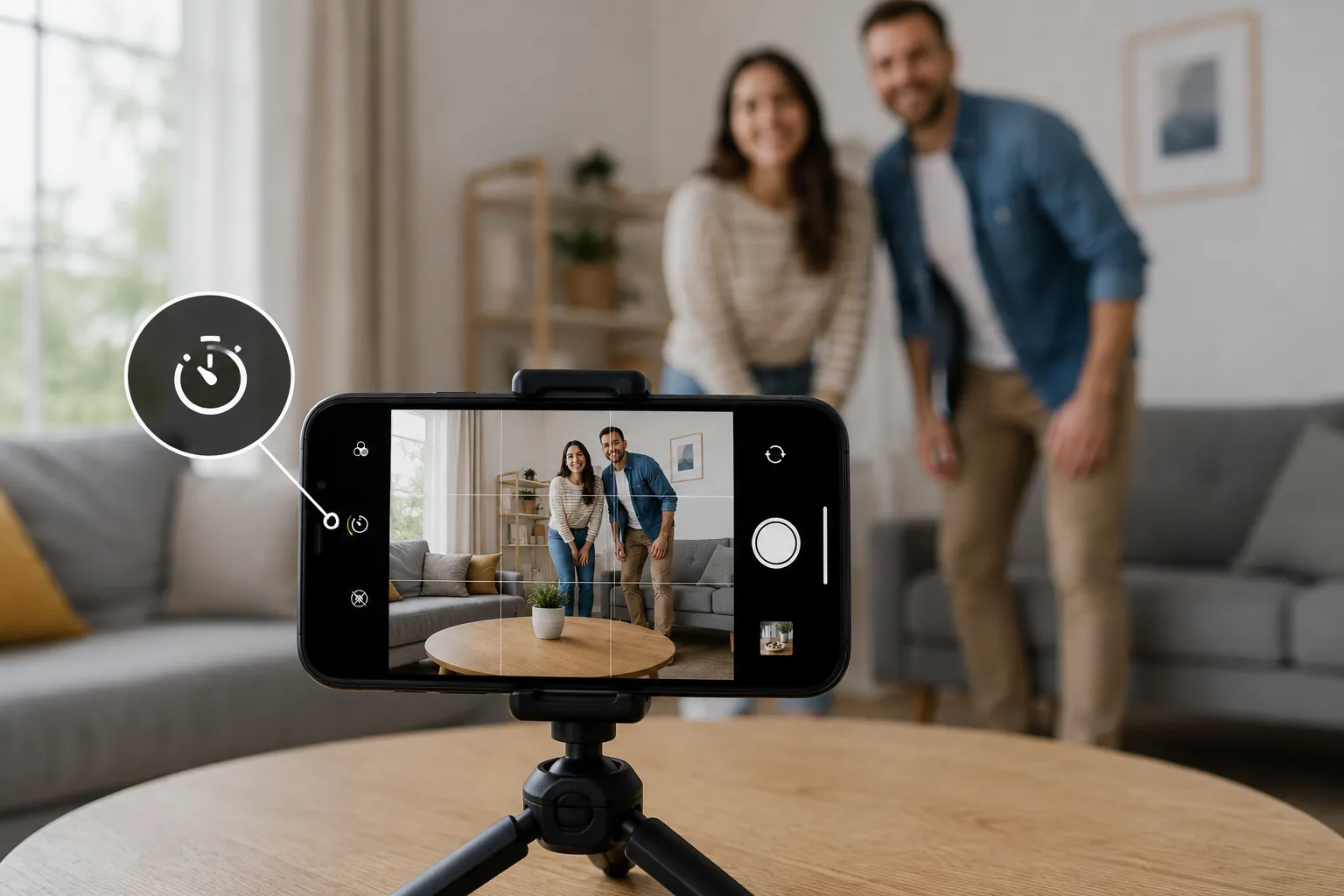
The self-timer takes the photo a few seconds after you press the shutter. It’s useful not just for “getting yourself into the shot,” but also for “preventing the shake of the moment you press.”
Two ways it’s useful
One is getting into the shot yourself. Fix the phone on a stable stand or tripod and use the 10-second timer to give yourself time to get into position (→ Group photos). The other is preventing shutter shake. With night views, dark places and overhead product shots, the vibration of pressing the shutter with your finger tends to cause blur. Set a 3-second timer, and since it fires after you’ve lifted your finger, it won’t shake (→ Photographing night views and illuminations).
How to use it
Tap the timer icon (a clock-like mark) on the camera screen and choose the seconds (3 or 10; some models also have 2). Frame the shot and set the brightness first, press the shutter, and keep the phone still until the shot is taken. A stand or tripod to fix it on adds stability.
What it pairs well with
Fixing the phone plus the timer pairs nicely with Night mode. Even when the shutter stays open a long time in the dark, it suppresses the shake from pressing. For selfies too, setting a timer and stepping back a little lets you shoot a natural composition without an outstretched arm (→ How to shoot selfies).
Start with just this
10 seconds to get in, 3 seconds to prevent shake. Fix the phone and don’t move it until the shot is taken. That solves both “shutter shake” and “I can’t get in the photo” at once.
FAQ
How many seconds should I set the self-timer to?
Use 10 seconds if you're getting into the shot, or 3 seconds just to prevent shutter shake. Fix the phone on a tripod or stand, frame the shot, then press the shutter.
Where is the timer?
Tap the timer (a clock-like icon) on the camera screen and choose the seconds. On iPhone it's at the top of the screen or in the shooting options; on Android it's a similar icon.
Related reading
Related subject guides

Fitting Everyone in a Group Photo — Fixing Tilt, Darkness and Framing

Flattering Selfies, Naturally — Why They Look Awkward, Plus Angle and Light

Shooting Night Views and Illuminations Crisp — Why They Blur, and Night Mode

How to Photograph Bento to Look Delicious — Color and the Overhead Shot
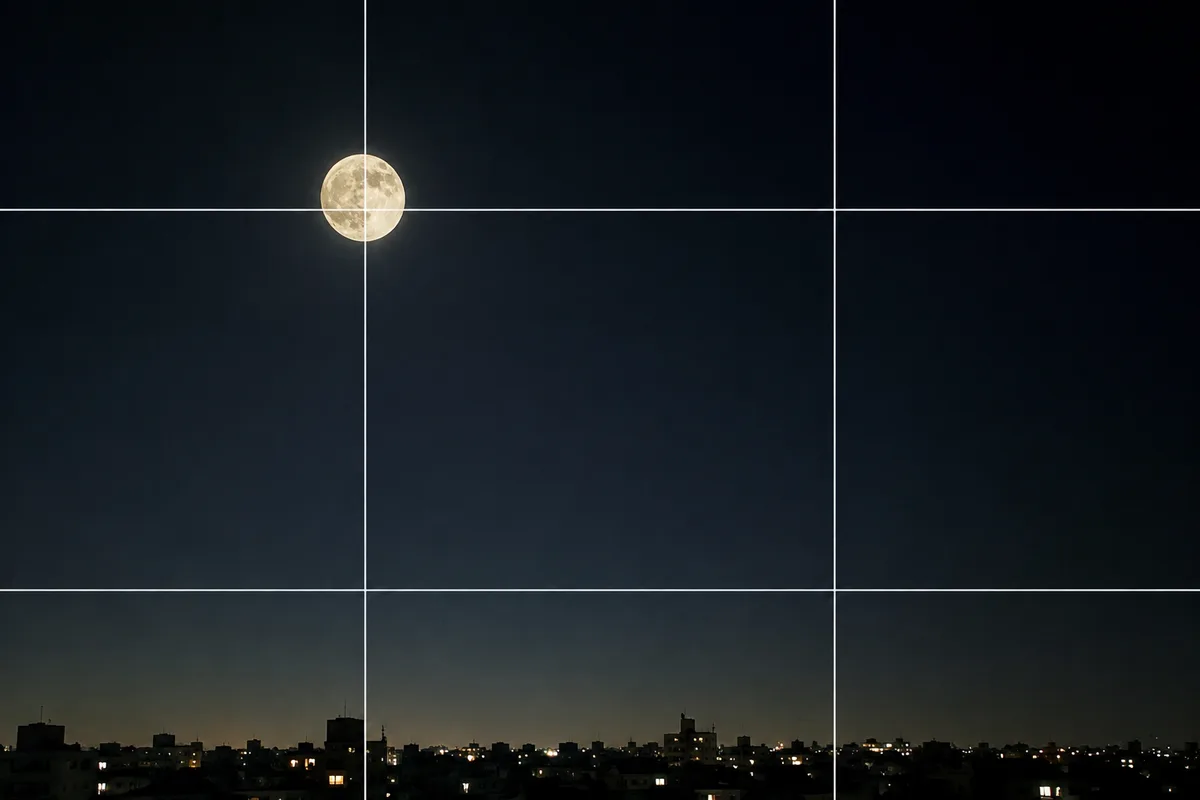
Shooting the Moon Clearly — Why It Becomes a White Dot, and What a Phone Can Do
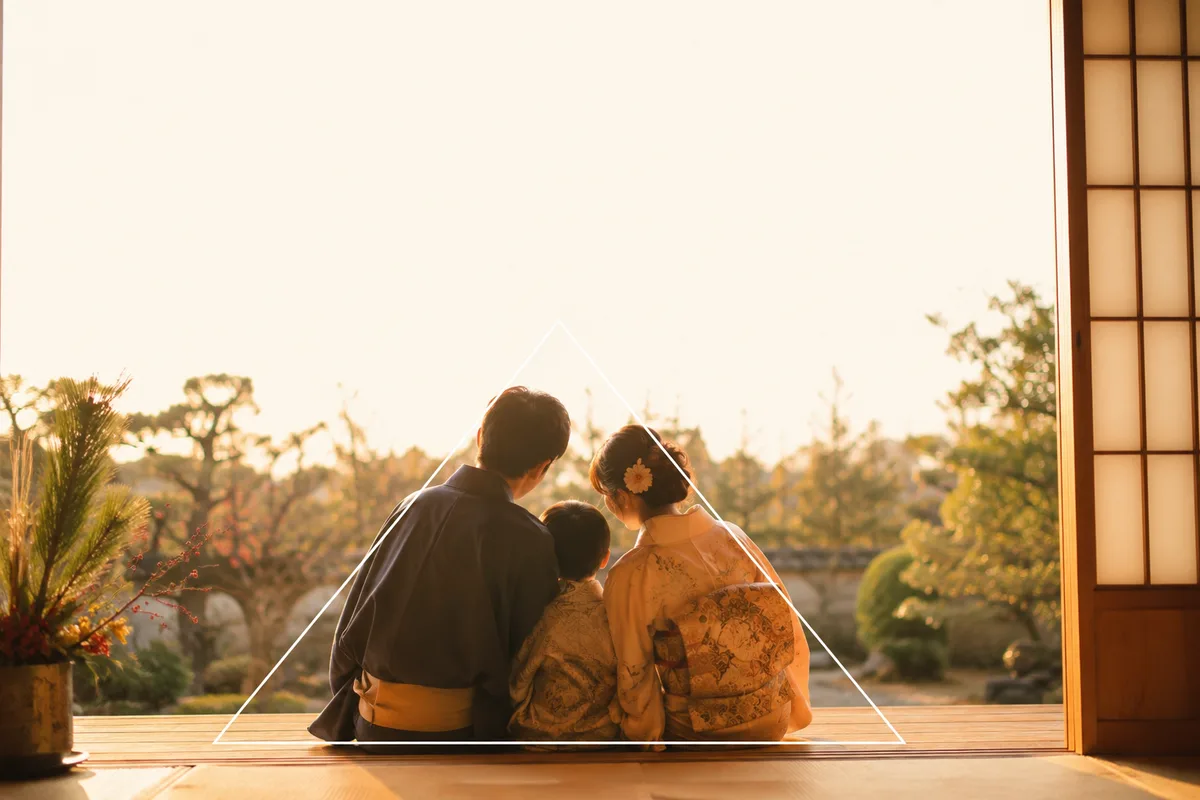
A Family Photo for New Year's Cards — Everyone In, Bright, with Room for Text