Settings
Turning on grid lines, adjusting brightness and the other basics worth knowing in the stock iPhone / Android camera app.
Essentials first4
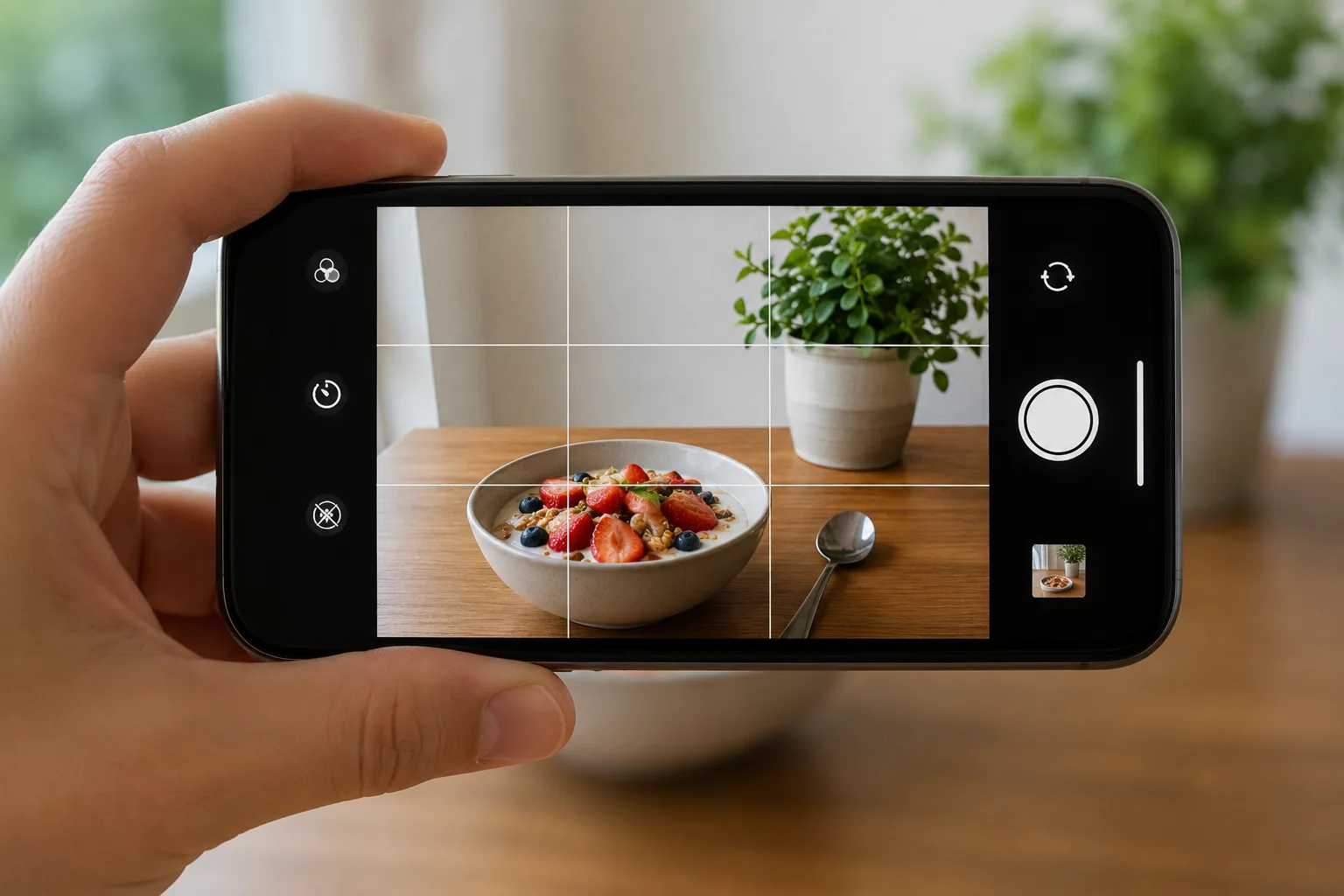
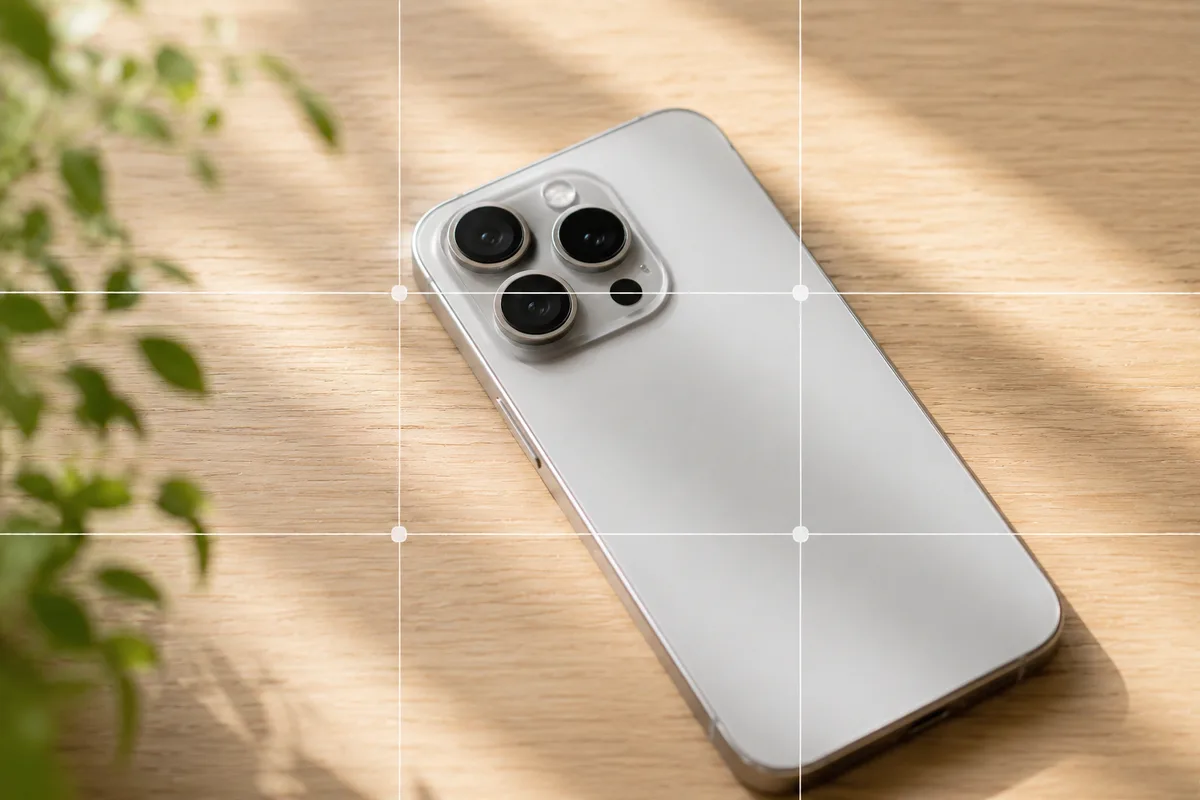
How Grid Lines Change Your Photos — Turning Them On in iPhone/Android
Just turning on grid lines makes leveling and subject placement easier. Here's how to enable them on iPhone and Android, and how to use them with the rule of thirds.
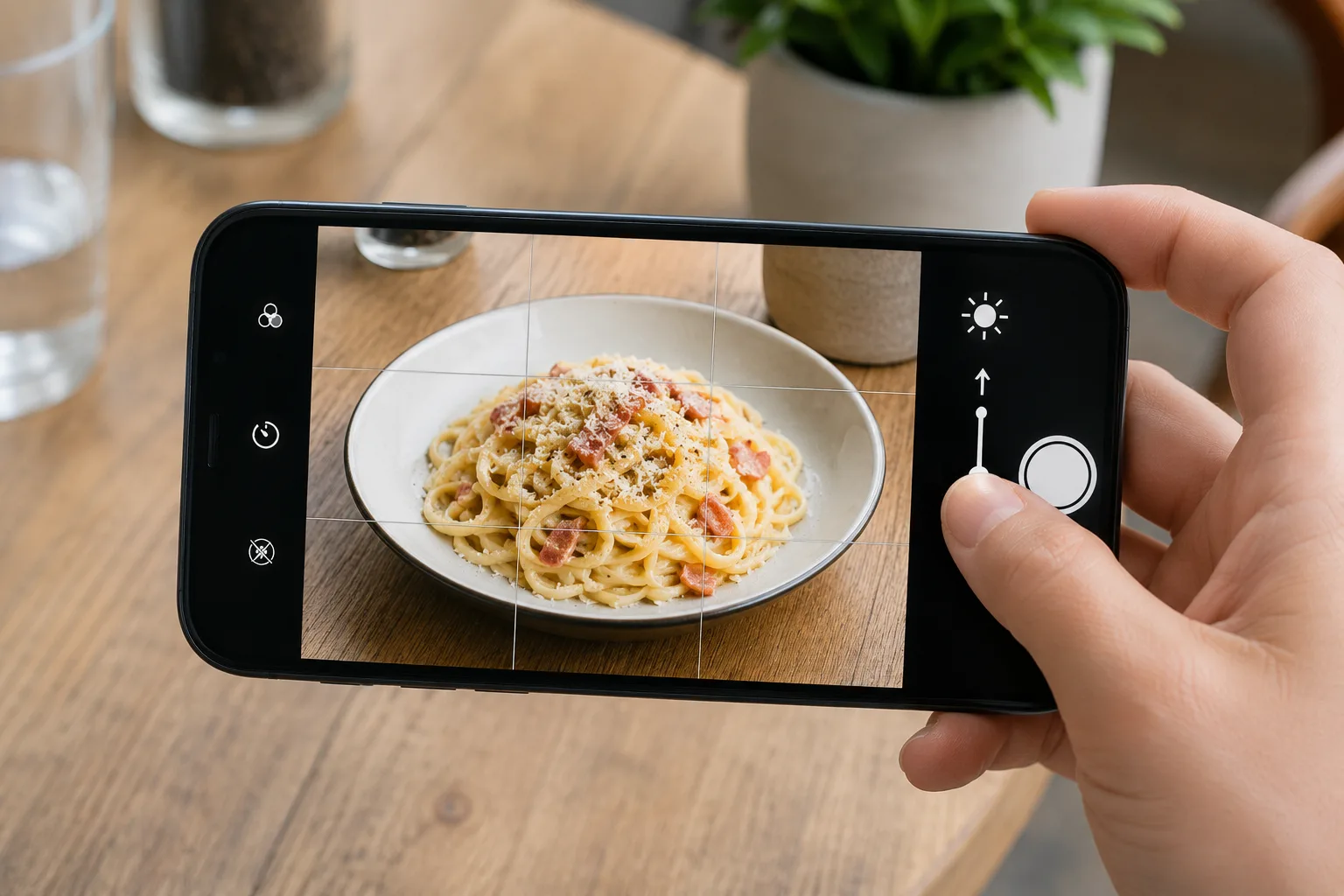
How to Adjust Brightness and Exposure on a Phone — Tap and Swipe Basics
Too dark or blown out? Tap your subject and swipe up or down to adjust exposure. Here are the steps for iPhone and Android, and how it differs from flash.
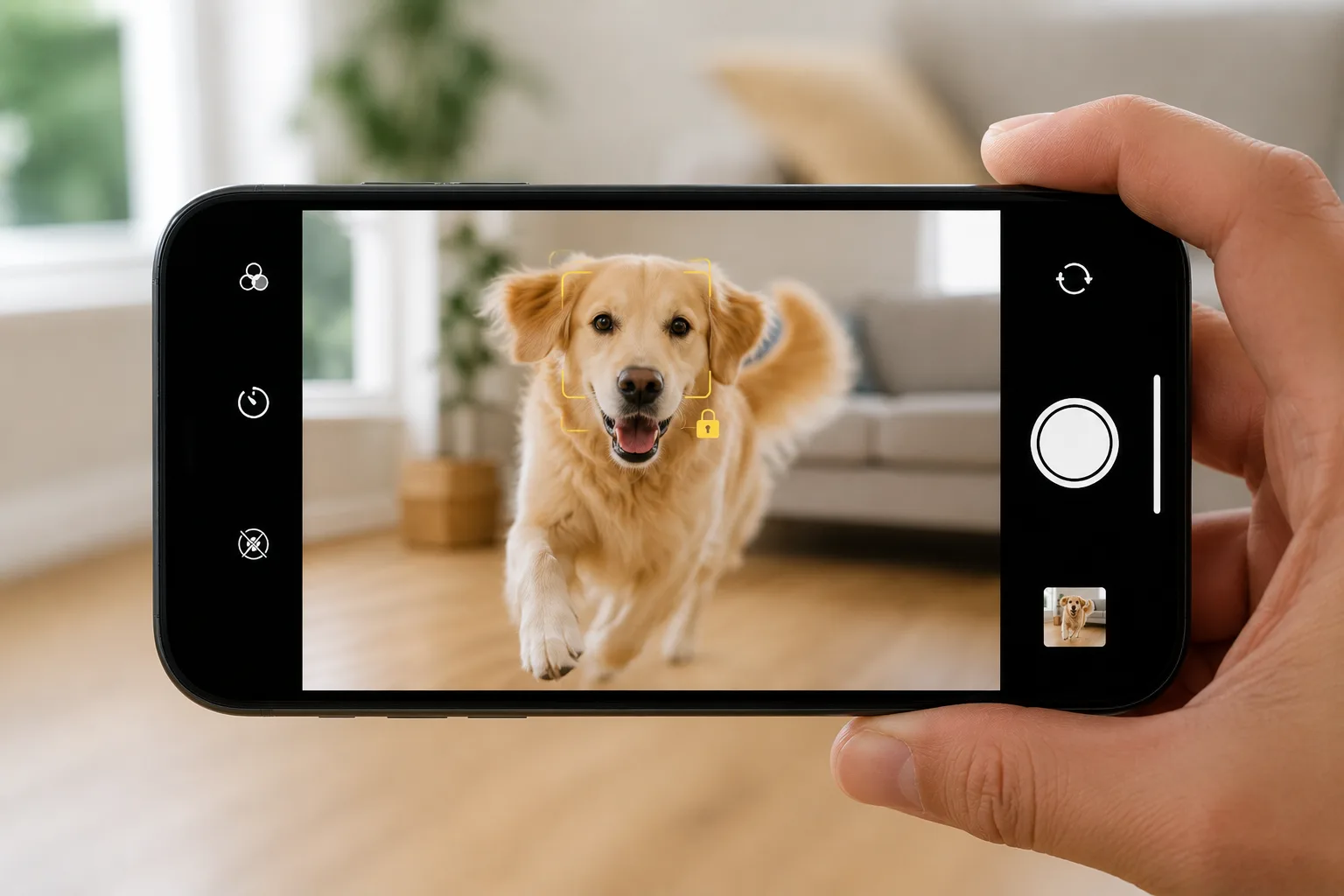
Focus Won't Hold, Moving Subjects Blur? Lock It With AE/AF Lock
When focus wanders on a moving or close subject, press and hold the screen to lock focus and brightness with AE/AF Lock. Here's how to use it on iPhone and Android.
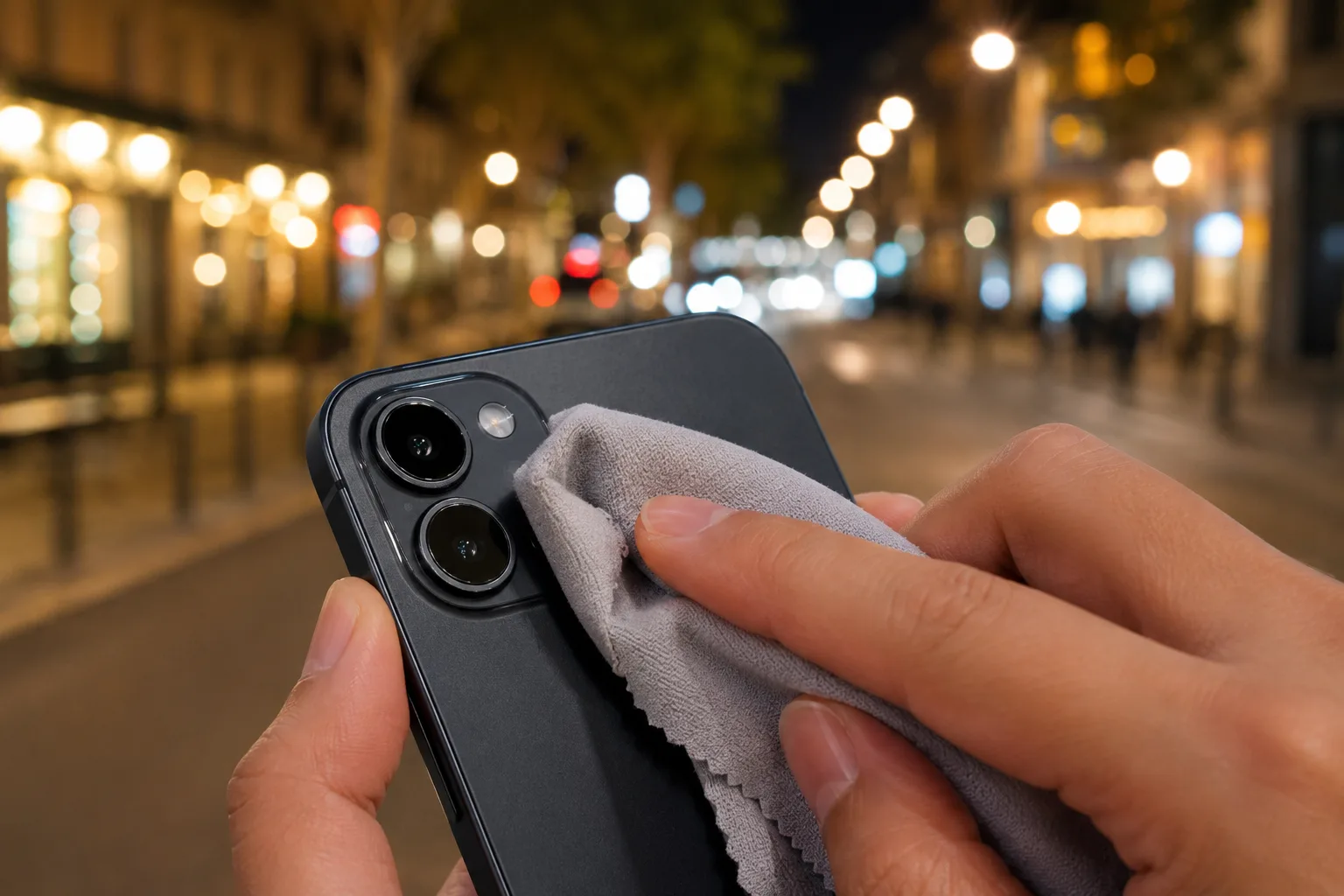
Why Photos Look Hazy or Washed Out — Wiping the Lens Changes Everything
Hazy, washed-out photos are often just oil on the lens. Wiping it with a soft cloth restores the image. Here's how to clean a phone lens and handle flare.
Shooting modes4

Blur the Background With Portrait Mode — Using It Naturally
Portrait mode blurs the background to lift your subject. Great for people and small objects, weak on hair and fine gaps. Here's how to use it and keep it natural.
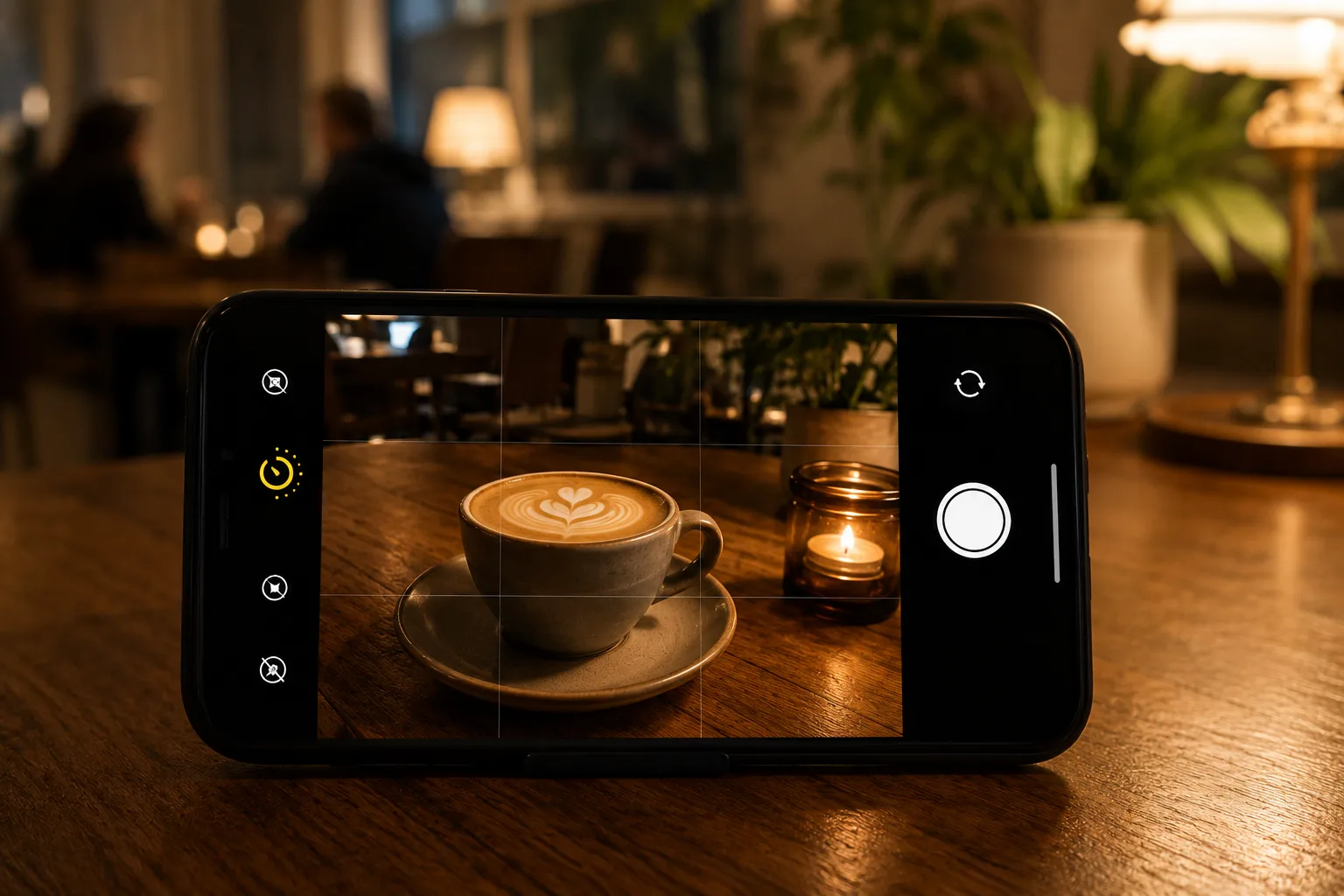
How to Use Night Mode — Bright, Shake-Free Shots in the Dark
Night mode gathers light over a few seconds for a bright, low-noise shot in the dark — but you must hold still. Here's how to use it and tips to avoid blur.
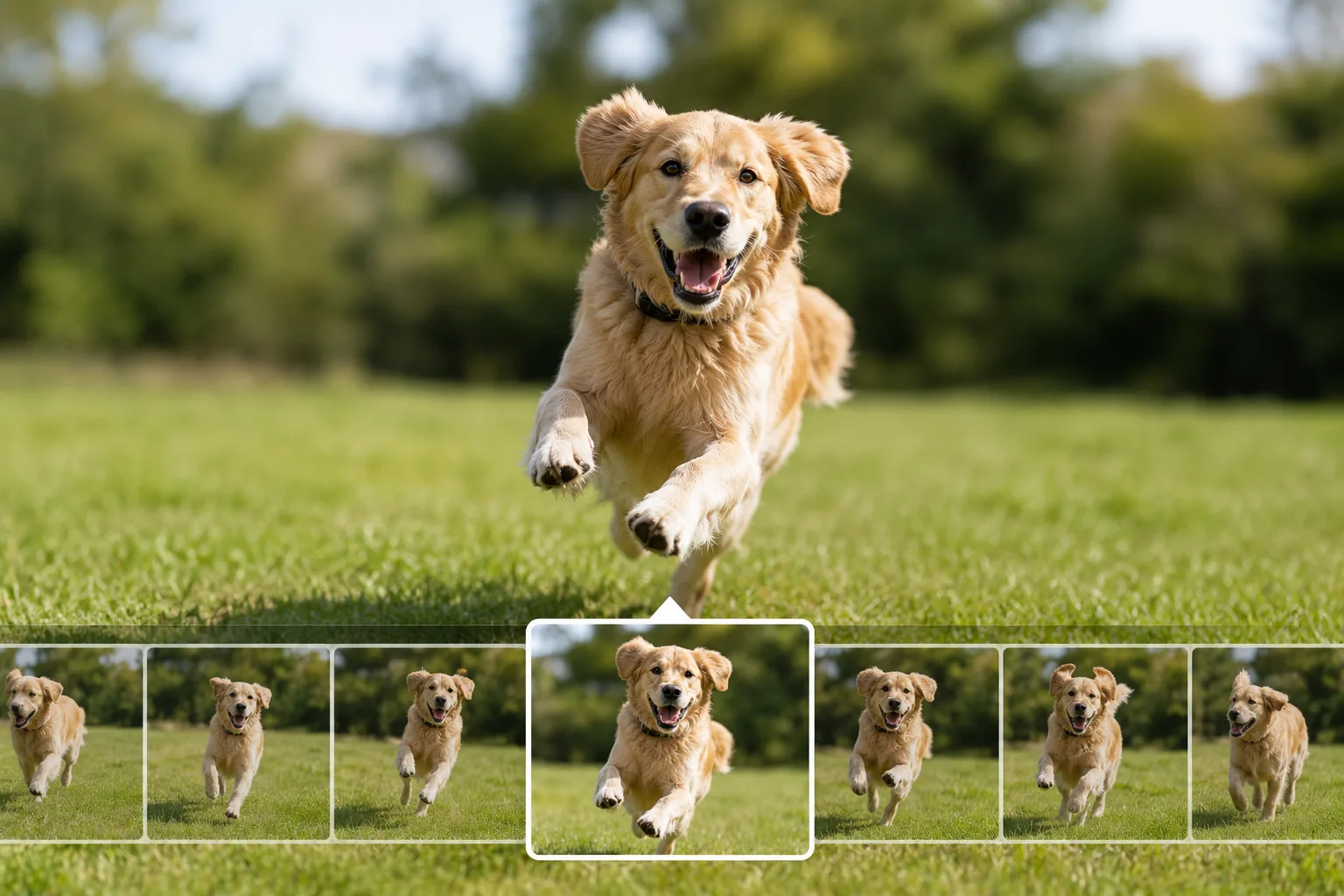
Don't Miss the Moving Moment — Burst Mode for Pets and Kids
Burst shooting fires many frames while you hold the shutter, so you can pick the best frame of a moving subject. Here's how to shoot bursts on iPhone and Android.
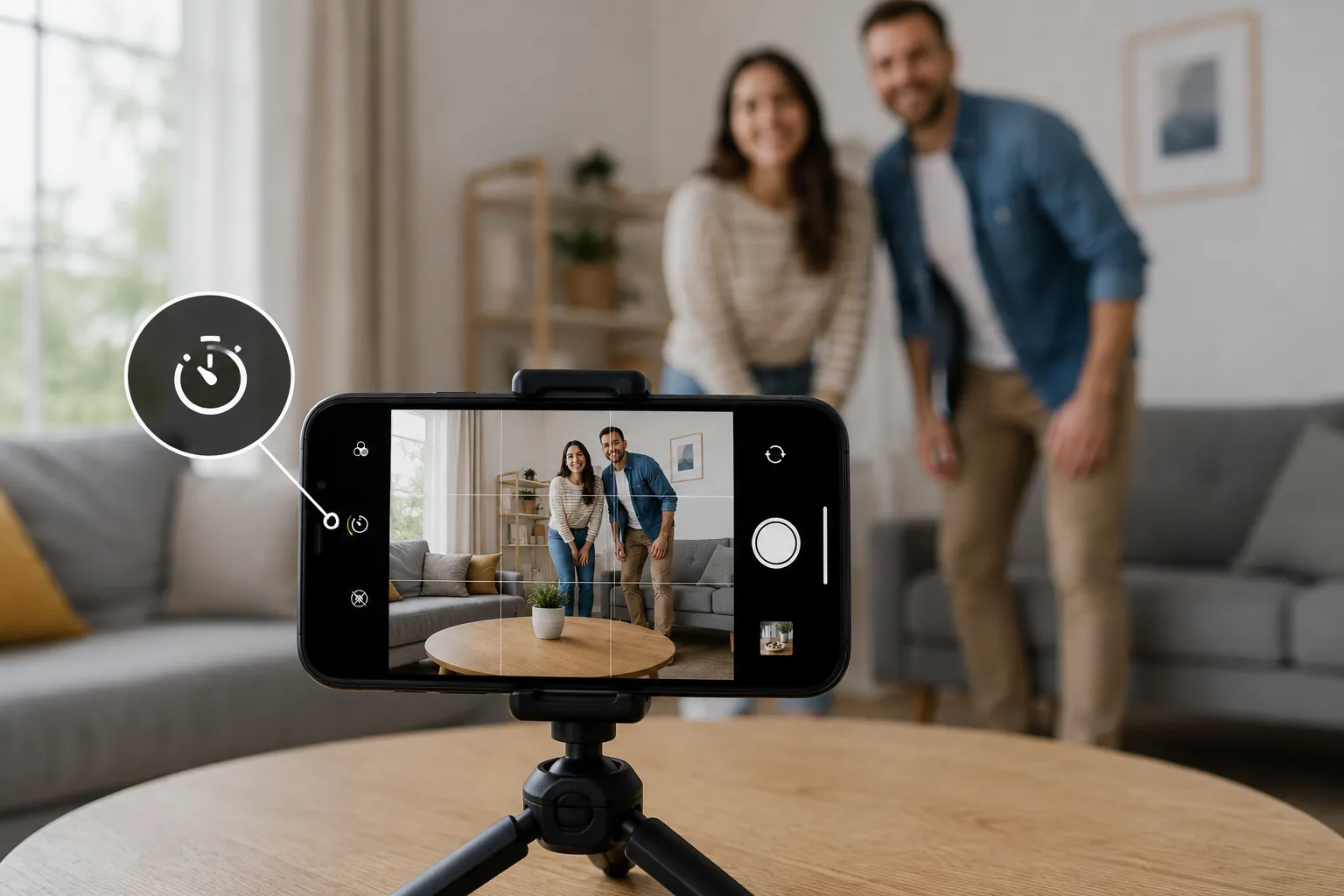
How to Use the Self-Timer — Prevent Shutter Shake and Get in the Photo
The self-timer prevents shutter-press shake and lets you get in the photo. Here's how to choose the seconds for group shots, night views and overhead product shots.
Aspect ratio & social1
Stepping up1
Other2
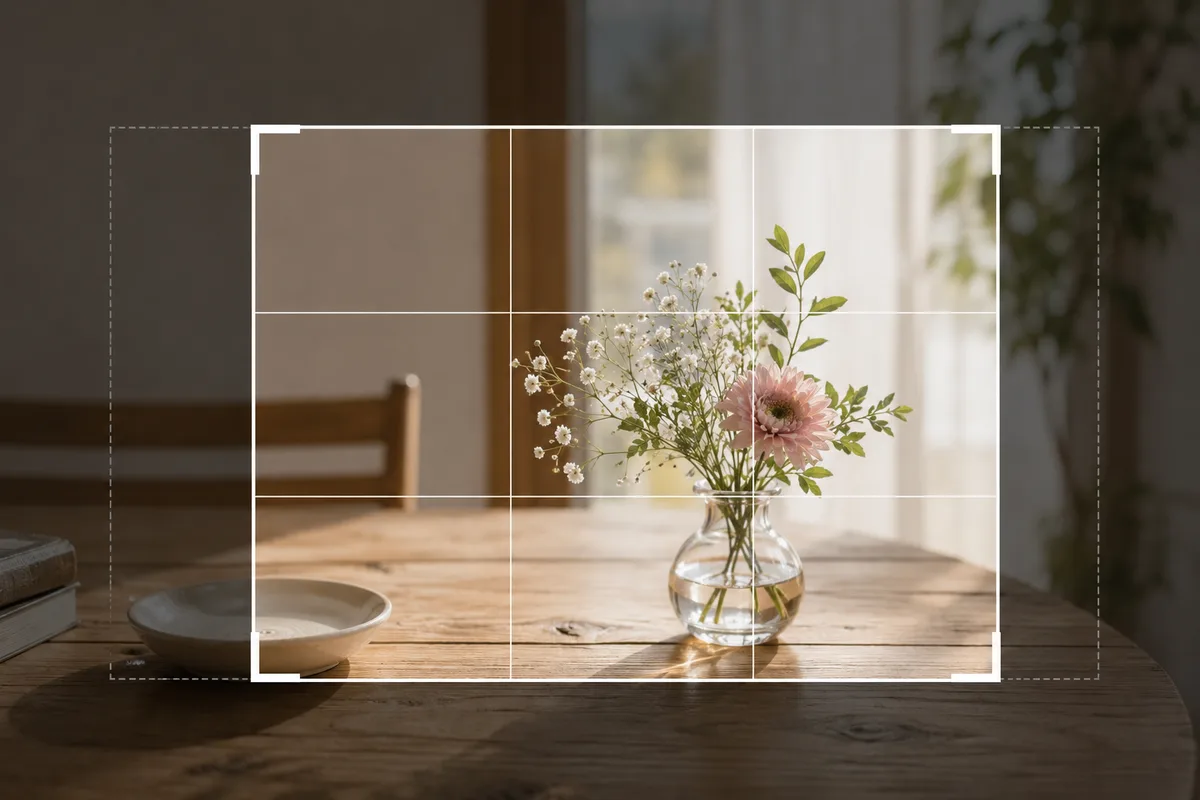
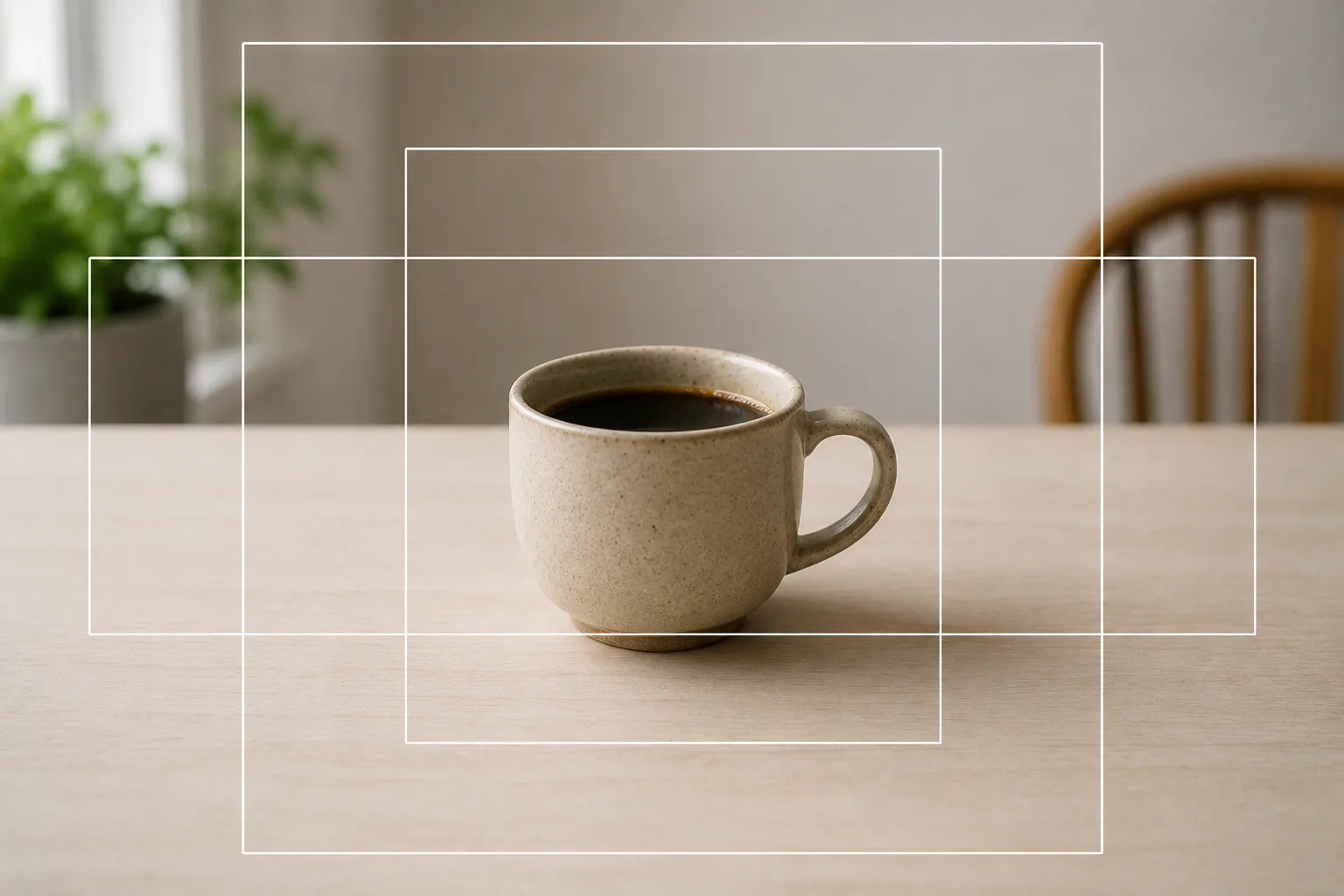
Fixing Composition After the Shot — Crop Your Way to Thirds and Negative Space
How to fix composition after the shot with a crop: the basic steps, recreating thirds, center and negative space, the quality limit, and leaving crop margin.
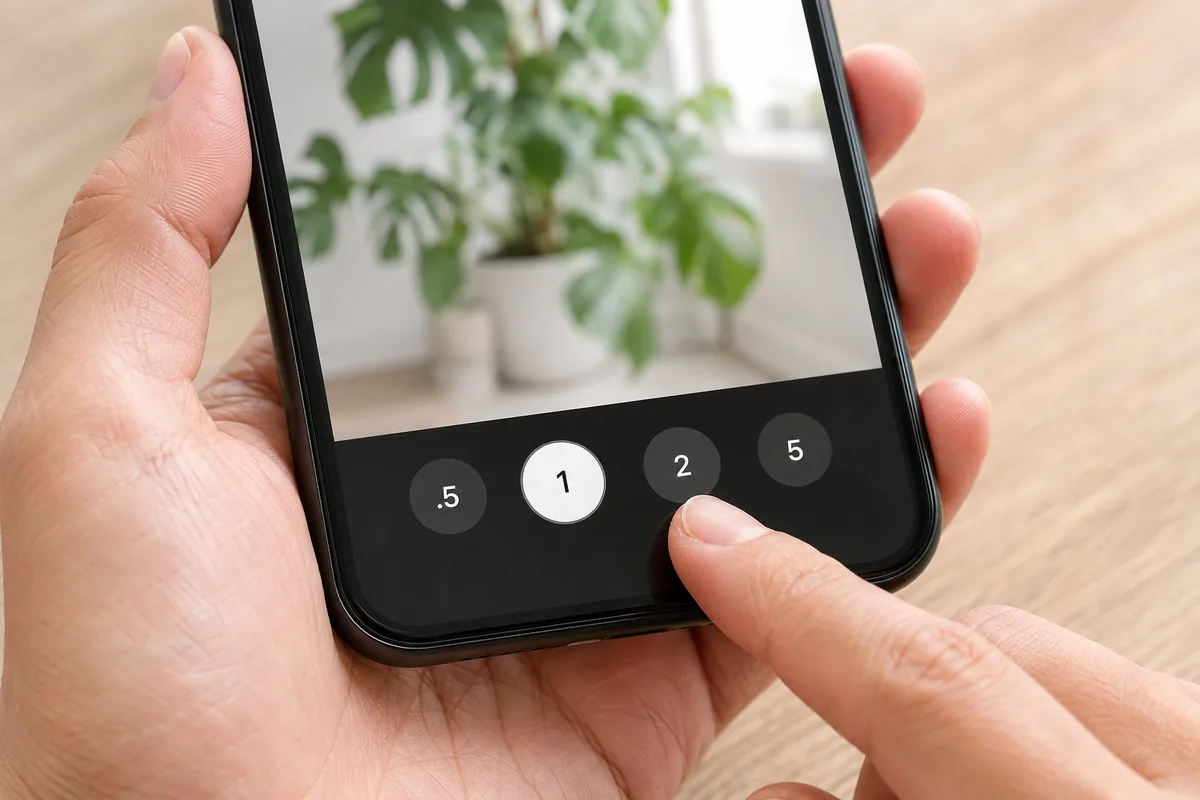
How Far Can You Zoom on a Phone? Where Optical Ends and Digital Begins
Where phone zoom starts to fall apart, on any model. How to read the zoom buttons, optical versus digital, and when zooming beats stepping closer.