Choosing Aspect Ratio (4:3, 1:1, 16:9) — Picking by Platform
Published Jun 27, 2026
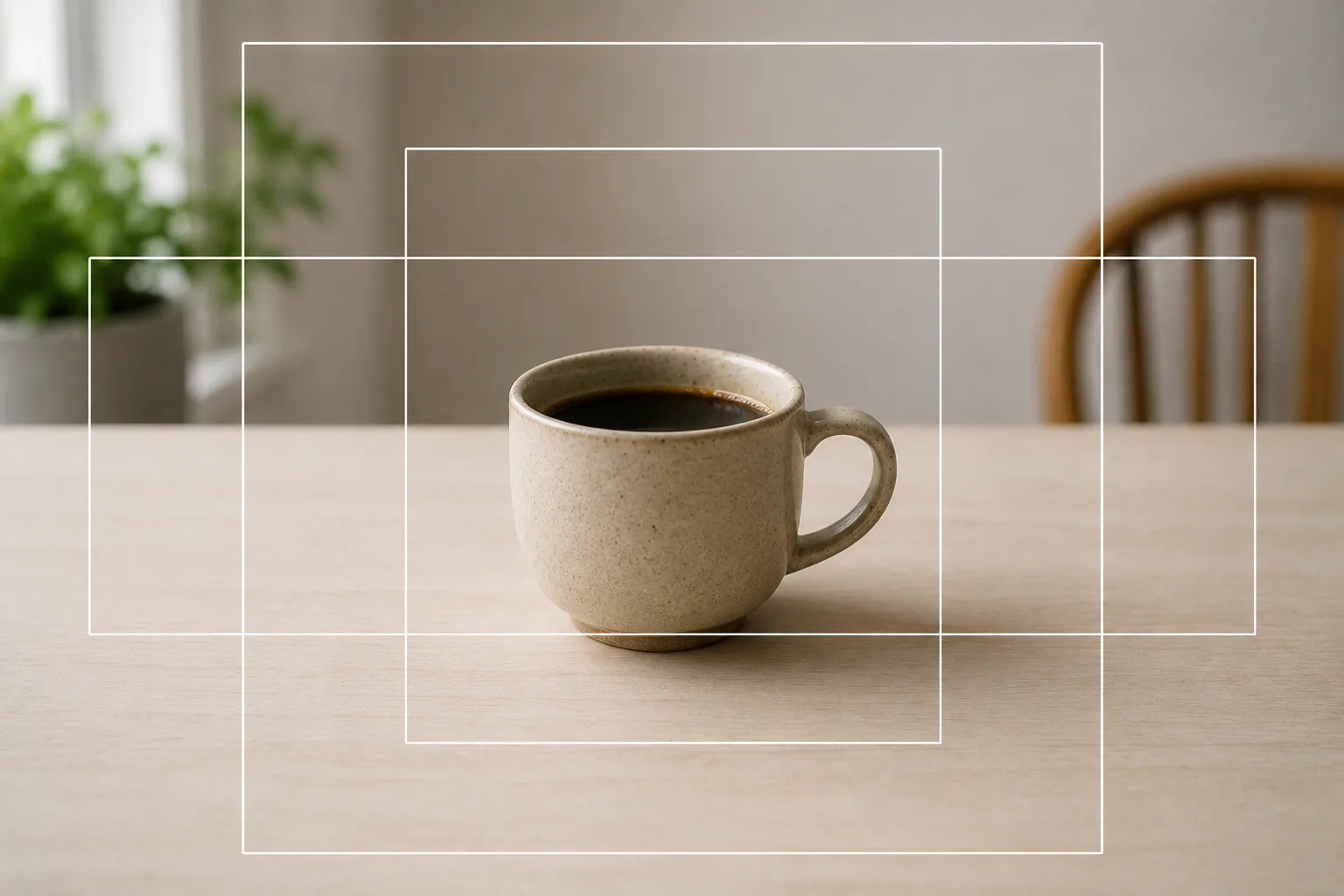
A photo’s aspect ratio is the proportion of width to height. Shooting at a ratio that fits the purpose cuts down on re-cropping later and makes composition easier to nail.
The main ratios and what they’re good for
4:3 is the phone standard — information-rich and versatile. When in doubt, this. 1:1 (square) suits social icons and grids where you want a uniform look (→ Photographing social media icons). 16:9 (wide) suits landscapes and expansive views you want to show grandly. For tall full-screen formats (like social stories), switch as the purpose requires.
Note that a phone’s sensor captures the full area at 4:3. 1:1 and 16:9 crop the top/bottom or sides while shooting, so they capture a narrower area (angle of view) than 4:3. When you want to capture as wide as possible, 4:3 has the edge.
How to switch the setting
There’s a ratio indicator (4:3 / 1:1 / 16:9, etc.) at the top of the camera screen or in settings. Tap to choose, and the on-screen frame changes to that ratio so you can shoot while checking the result. Names and locations vary by model.
How to think about choosing
If the purpose is fixed, match it while shooting; if you’re unsure, shoot the information-rich 4:3 and crop later — that’s safe (for the crop steps themselves, see Fixing composition with a crop). For reselling, keeping the composition uncropped in a square grid (subject toward the center) makes thumbnails easy to read (→ Photos for Mercari and reselling).
Start with just this
When in doubt, shoot 4:3. Use 1:1 for social icons and grids, 16:9 for grand landscapes. Only switch while shooting when the purpose is fixed. That prevents “I cropped it later and lost the important part.”
FAQ
Can I change the aspect ratio after shooting?
Yes. Crop in your photo app's editor to cut to 1:1, 16:9 and so on. But cropping narrows the area, so if the purpose is fixed, matching the ratio while shooting is safer.
Which ratio is the safe default?
The standard 4:3 holds the most information and is easy to crop later, so it's safe. Only switch to square or wide while shooting when you already know you'll need it, so you can check the framing as you go.
Related reading
Compositions used
Related subject guides
Composing a Polished Social Media Icon — Making a Good Impression
Composing Marketplace Listing Photos That Sell — Clearing the Background
Shooting Landscapes With Depth — Why They Look Flat and How to Level
Composing Stylish Café Photos — Why They Don't Pop and How to Fix It
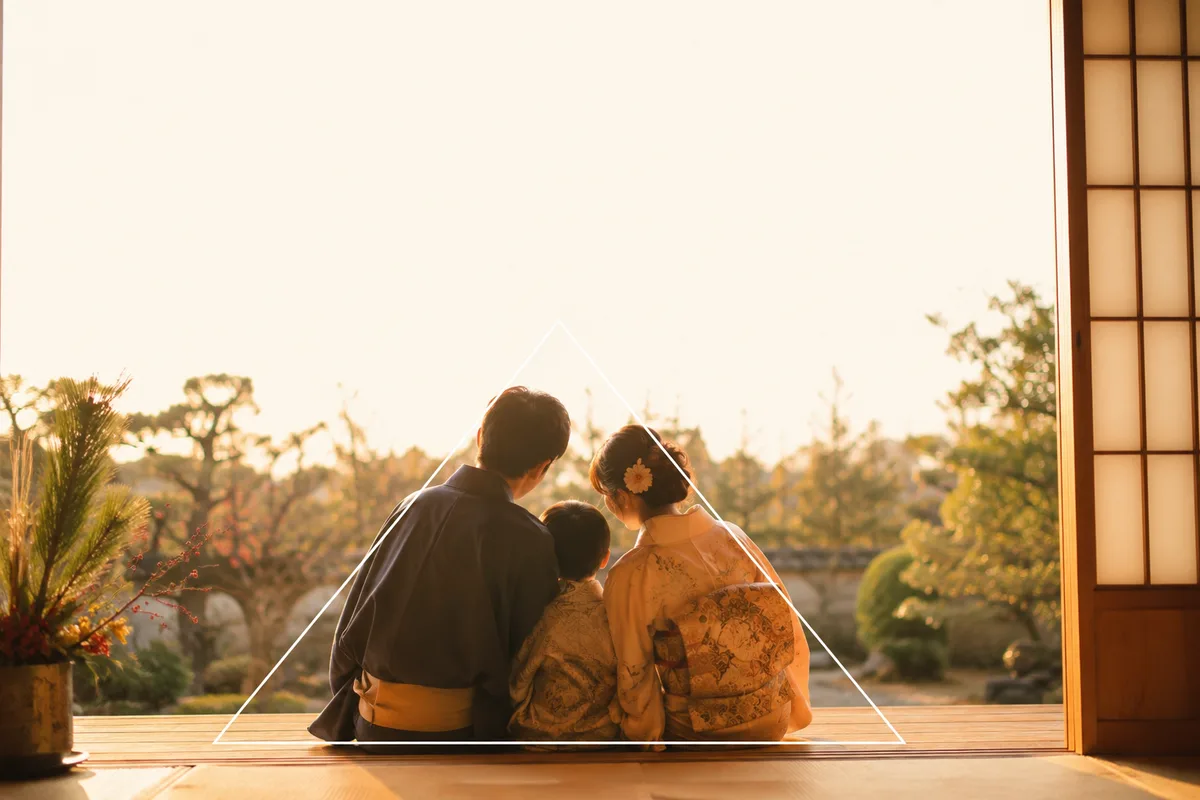
A Family Photo for New Year's Cards — Everyone In, Bright, with Room for Text
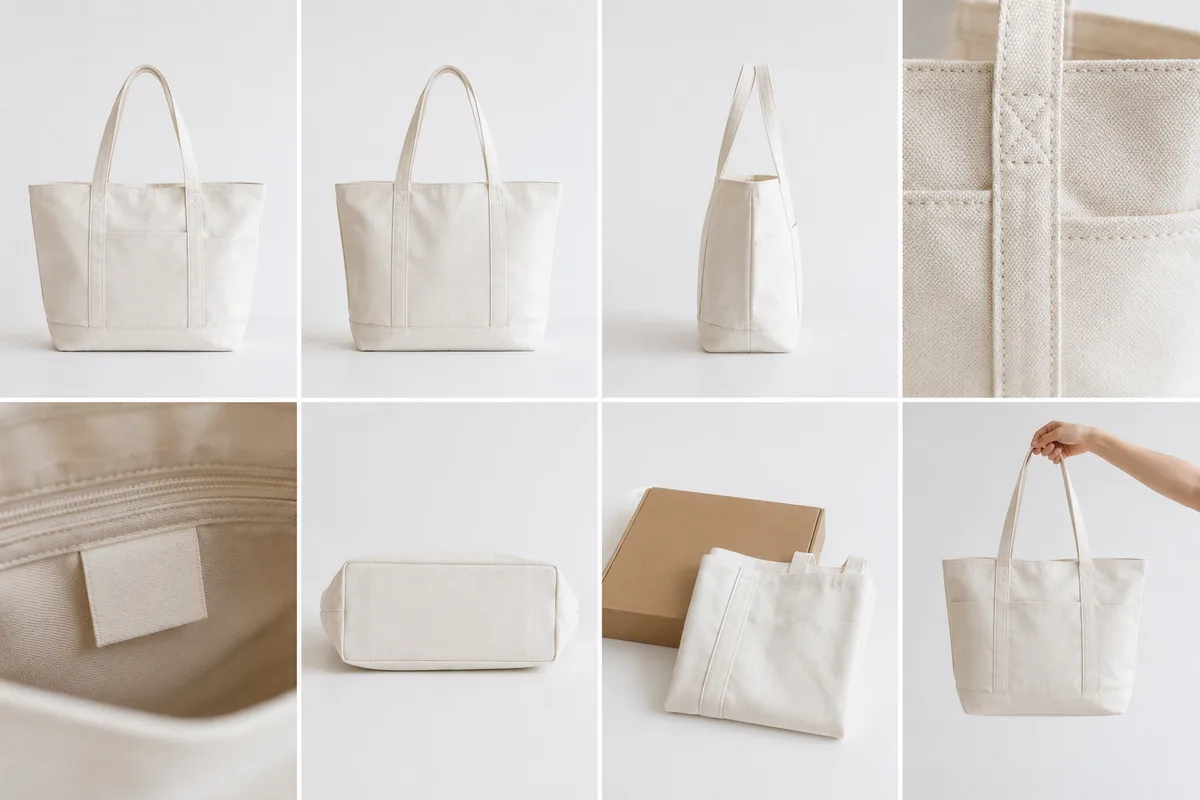
The 8-Photo Listing That Tells the Whole Story — What to Shoot, in What Order
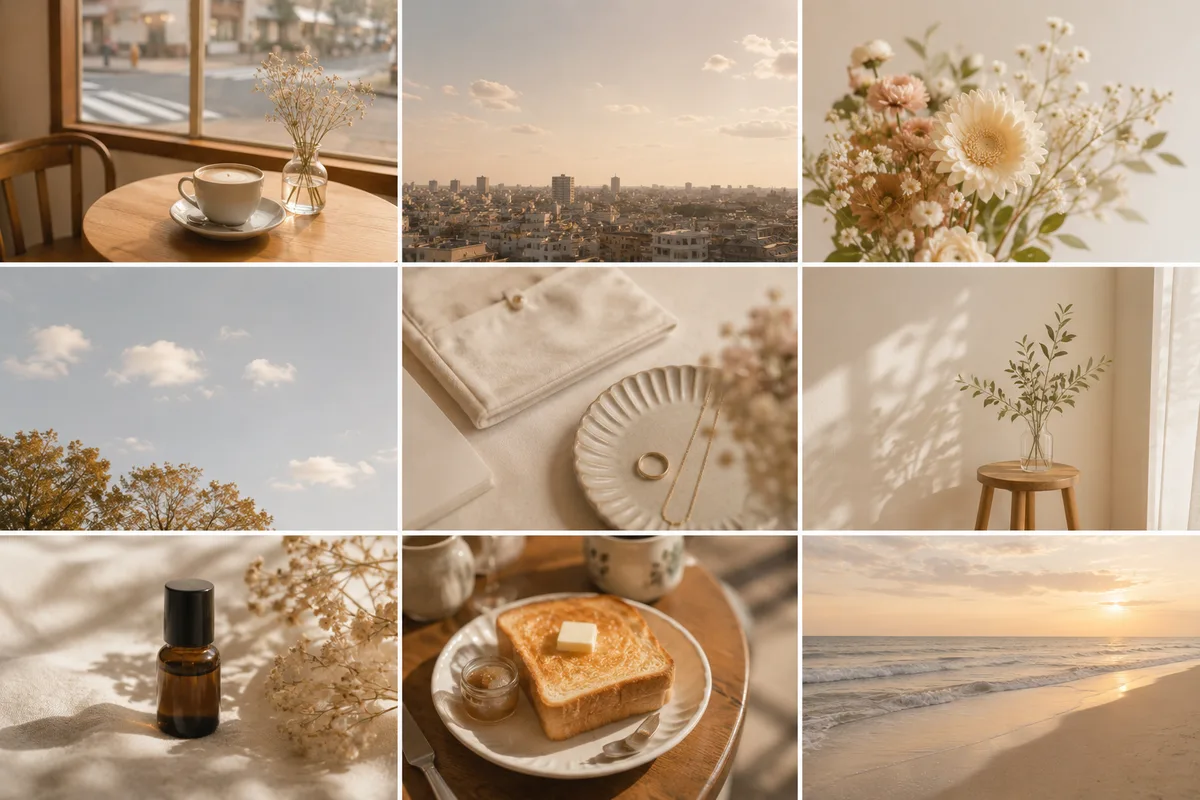
Shooting for a Beautiful Instagram Grid — Think in a "Nine-Photo Surface"