How to Photograph Plushies as the Star — Fixing Tiny, Blurry, Busy Shots
Published Jun 27, 2026
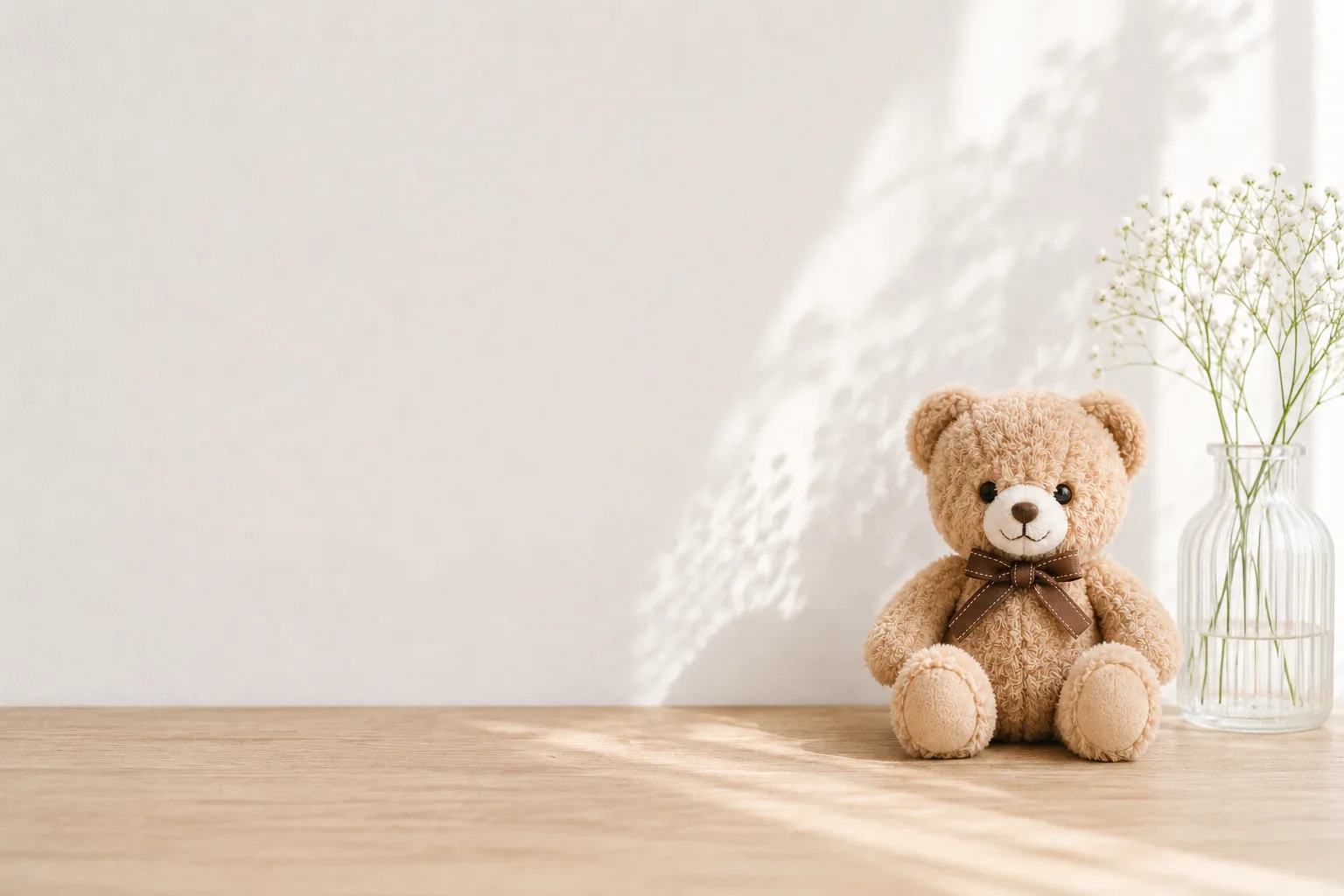
You took “a shot with my plush” at a café, on a trip, or at home — but looking back, the plushie is tiny, it’s blurry, the background is a mess. The reasons phone shots of plushies go wrong are fairly predictable, and you can fix them right in your stock camera. Plushies don’t move and stay the same size, so just sorting out placement and focus makes a huge difference.
Focus on the plush’s face
The most common letdown in plushie photos is focus slipping to the background or the food in front, leaving the plush soft. Before you shoot, tap the plush’s face on screen to set focus. If it keeps jumping elsewhere, press and hold around the face to lock focus and brightness (AE/AF Lock) (→ How to use AE/AF Lock). When you want a strong background blur, Portrait mode is handy too (→ How to use Portrait mode).
Move in close so the plush reads big
When the plush is small in the frame, it’s hard to tell what you wanted to capture. Don’t shoot down at it from standing height — take a step in and make the plush big. Lower your phone to the plush’s eye level and its expression comes alive, giving it real presence.
Center it or use an intersection, and leave space
With a single plush, a center composition lifts the star straight on (→ Center composition). When you also want to show the mood of the setting, place the plush on a rule-of-thirds intersection and leave space ahead of its gaze for a sense of story (→ Rule of thirds). If the background feels busy, simply leaving space around the star calms things down (→ Negative space). Center or intersection, tidy the background and keep it to one star and it’ll land.
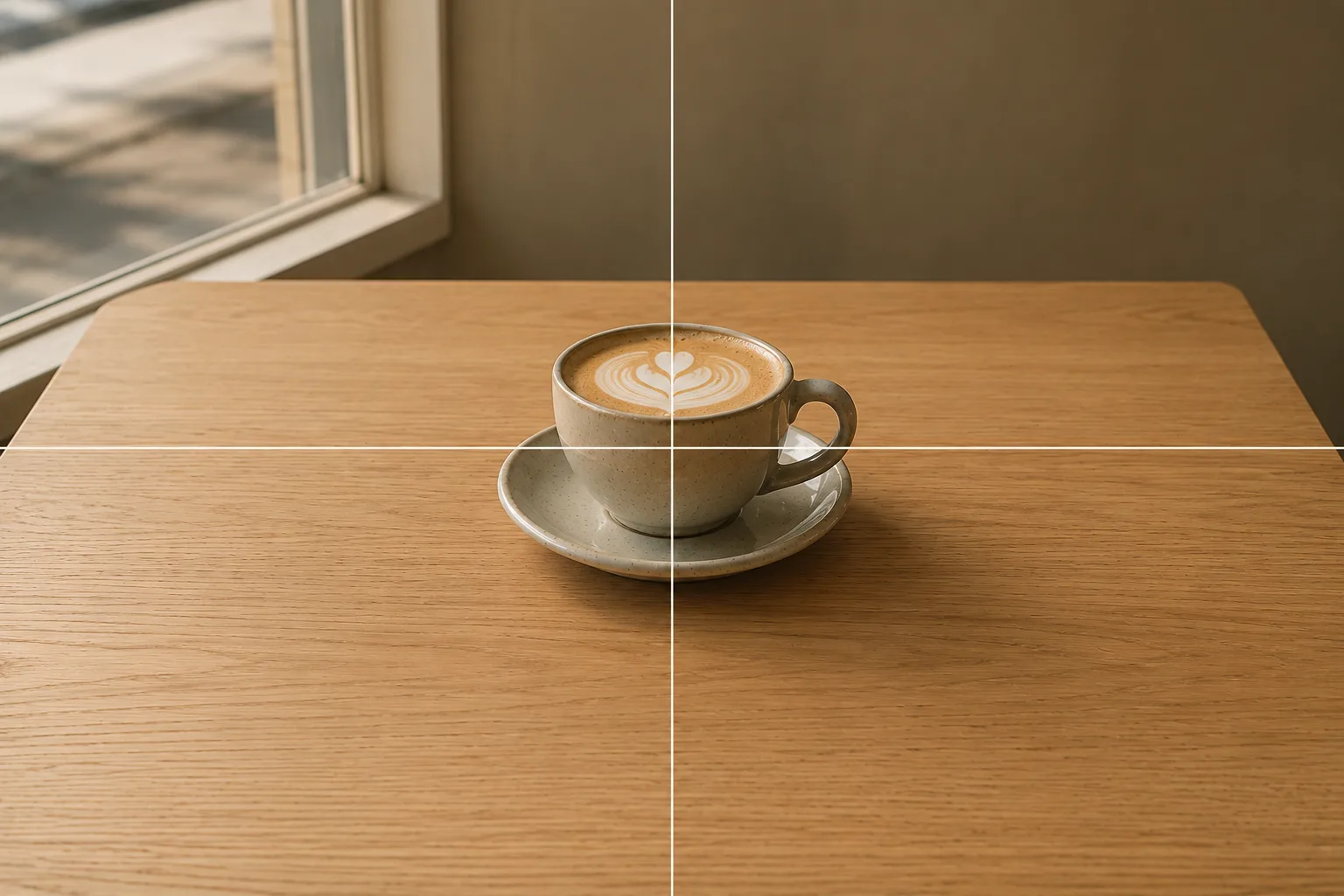 Composition guideCenter compositionSee the full guide for this composition →
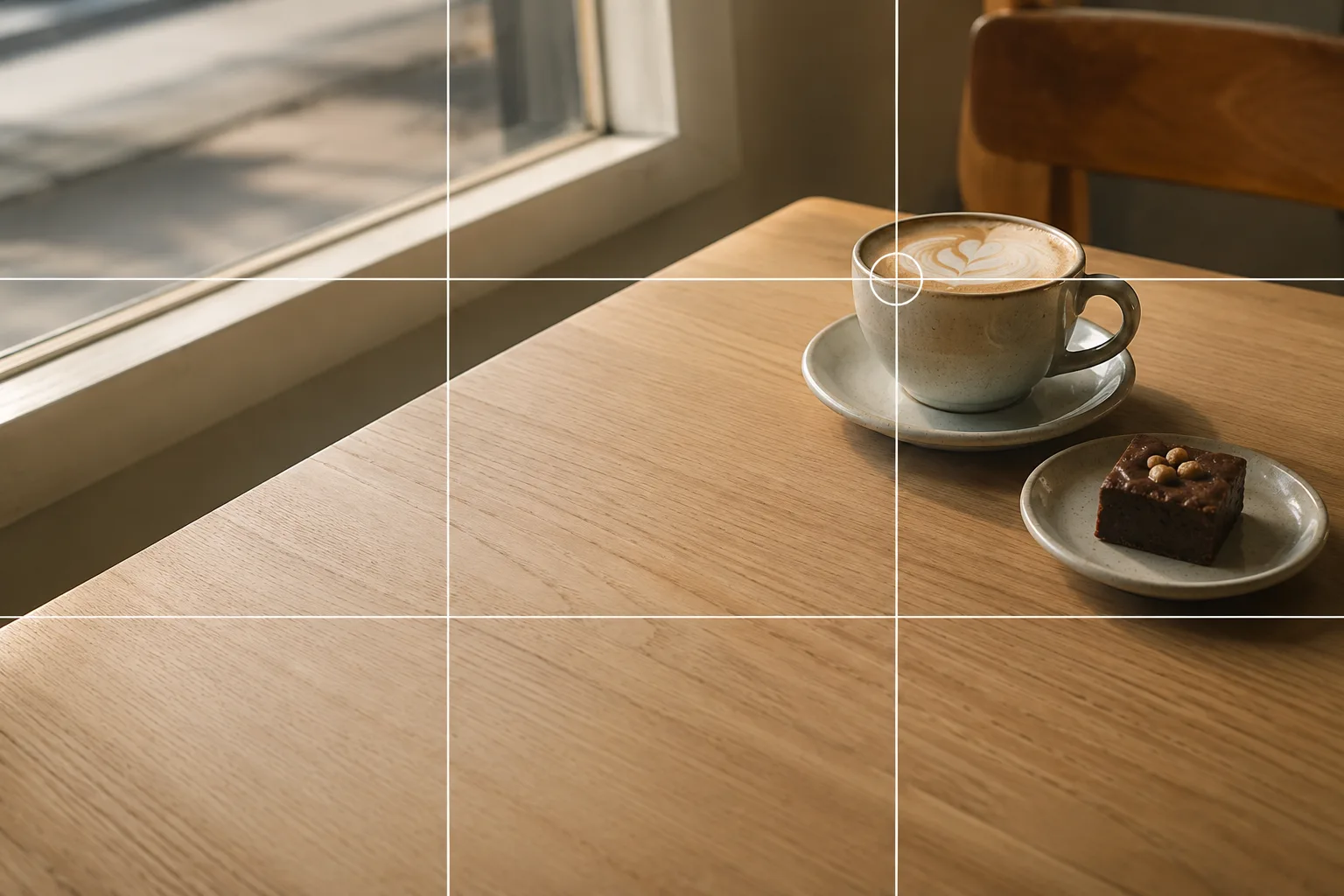 Composition guideRule of thirdsSee the full guide for this composition →
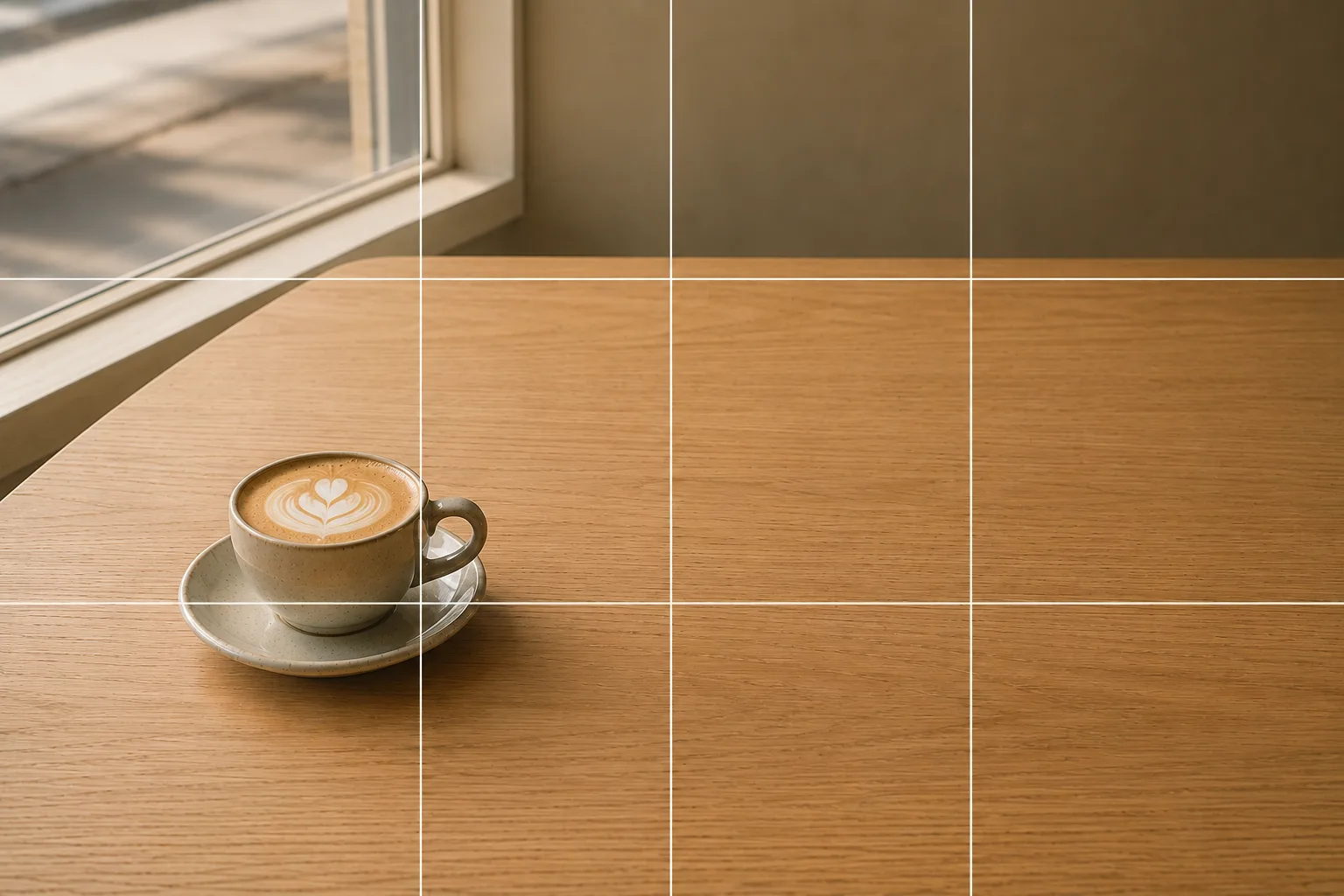 Composition guideNegative spaceSee the full guide for this composition →
On to scene-by-scene tips
The same plush calls for different care depending on where you shoot. At a café it’s tidying the background (→ Plushie photos at a café); at home it’s clearing the everyday clutter (→ Plushie photos at home / on the table); on a trip it’s blending the plush with the scenery (→ Plushie photos while traveling); with seasonal flowers it’s making the star stand out (→ Photographing plushies with seasonal flowers); and lining up everyone’s plushies at a fan meetup has a guide of its own (→ Group goods photos at fan meetups). For acrylic stands, photocards and other fan goods, see How to photograph fan goods; for nailing placement as a small object, Photographing small items and accessories helps too.
Start with just this
Tap the plush’s face to focus, take a step in to make it big, and leave a little space around it. Those three alone graduate you from “almost there” plushie photos. After that, add background-tidying to match wherever you’re shooting.
FAQ
My plushie keeps coming out blurry.
Phones tend to focus on the scenery behind the plush or a small object in front. Tap the plush's face on screen to set focus, and if it keeps drifting, press and hold the face to lock it (AE/AF Lock). It'll come out sharp.
My plushie looks small and dull.
Take a step closer to make the plush bigger on screen and leave a little space around it. A center composition is steady, or place it on a rule-of-thirds intersection. Tidy the background and the star stands out.
Example gallery
Related reading
Compositions used
Related subject guides
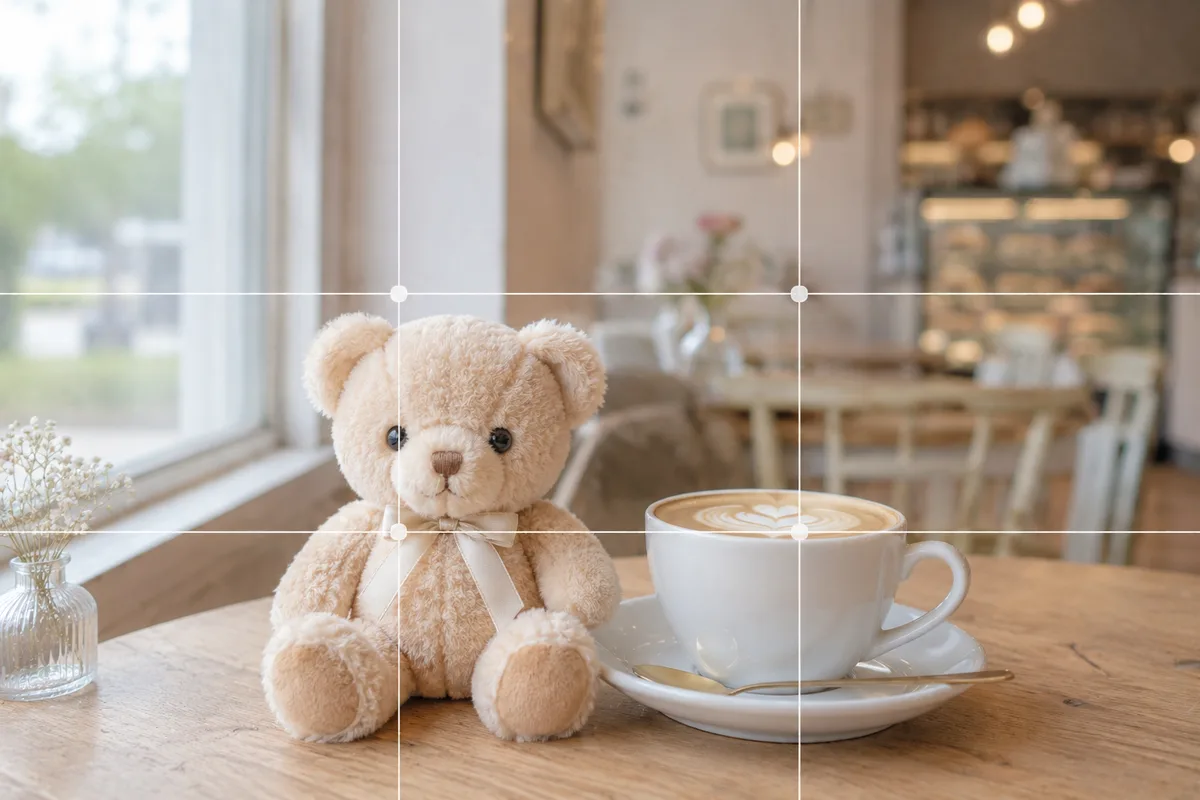
How to Make Your Plushie Pop at a Café — Busy Backgrounds and Lost Subjects
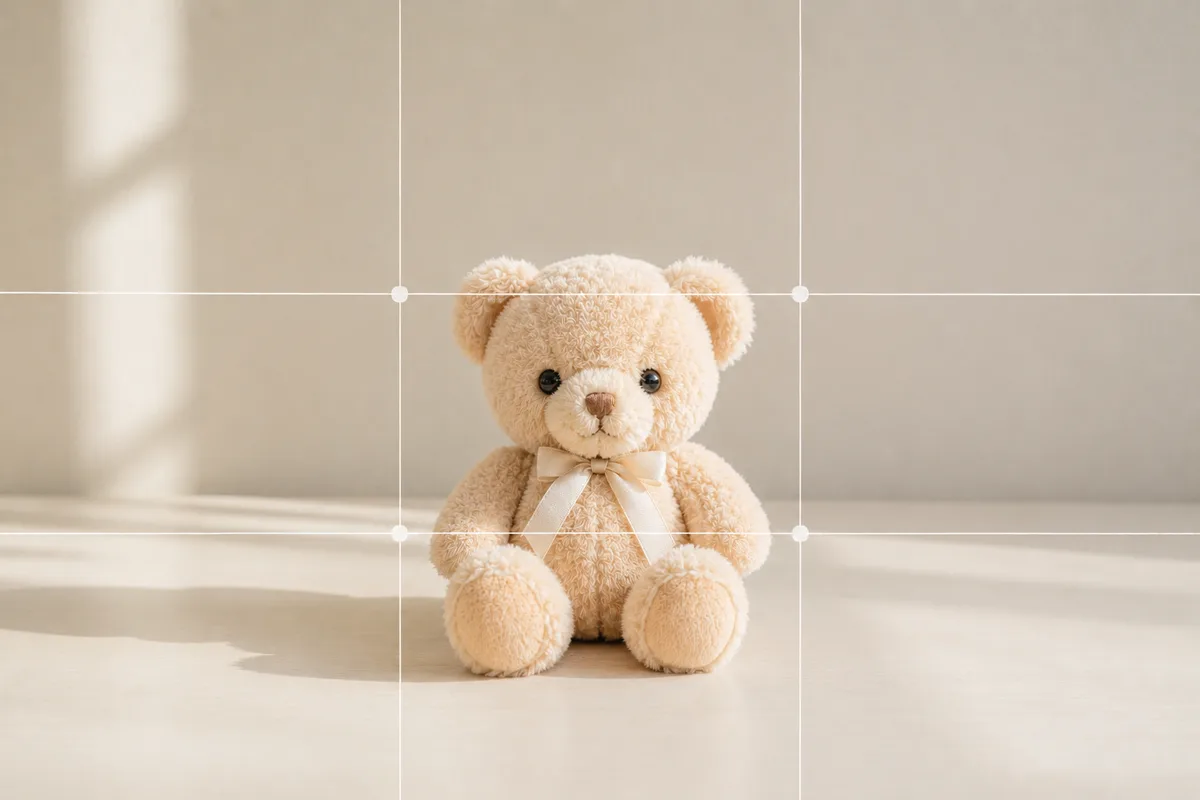
How to Photograph Plushies Cutely on a Table at Home — Taming Clutter
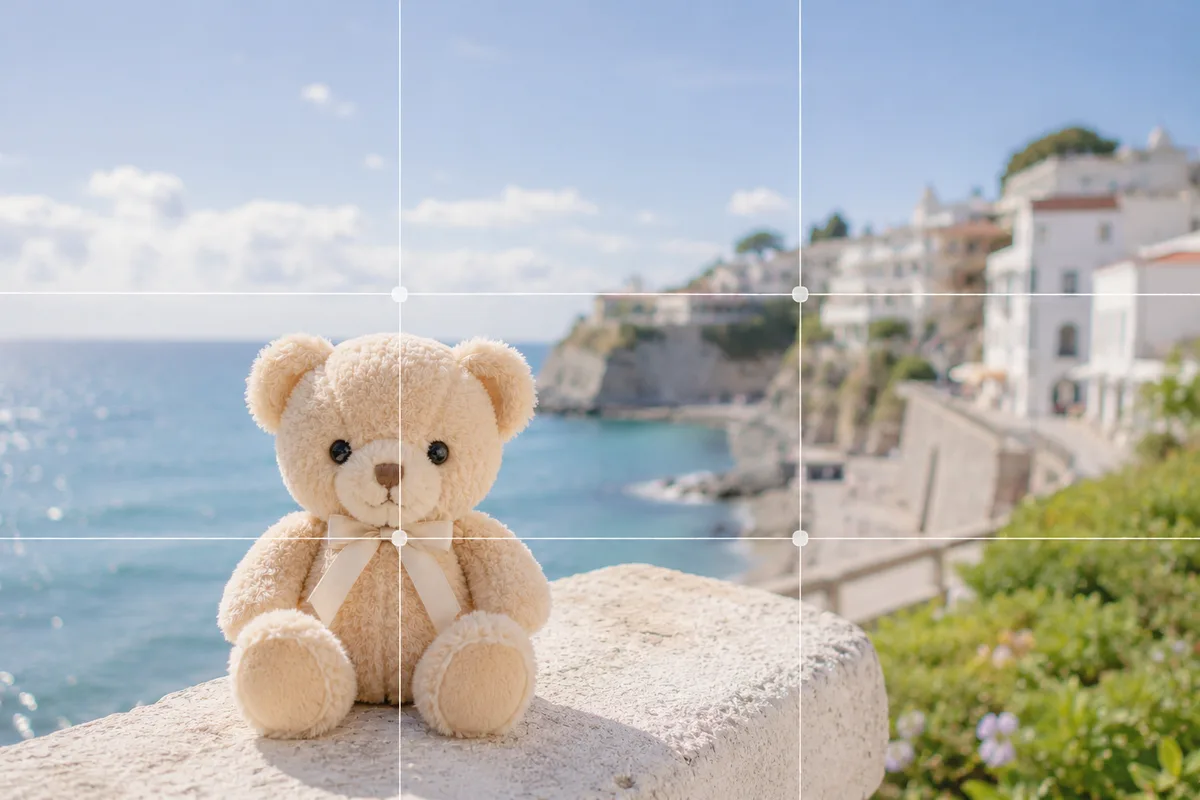
Plushie Photos While Traveling — When the Plush Loses to the Scenery or Tilts
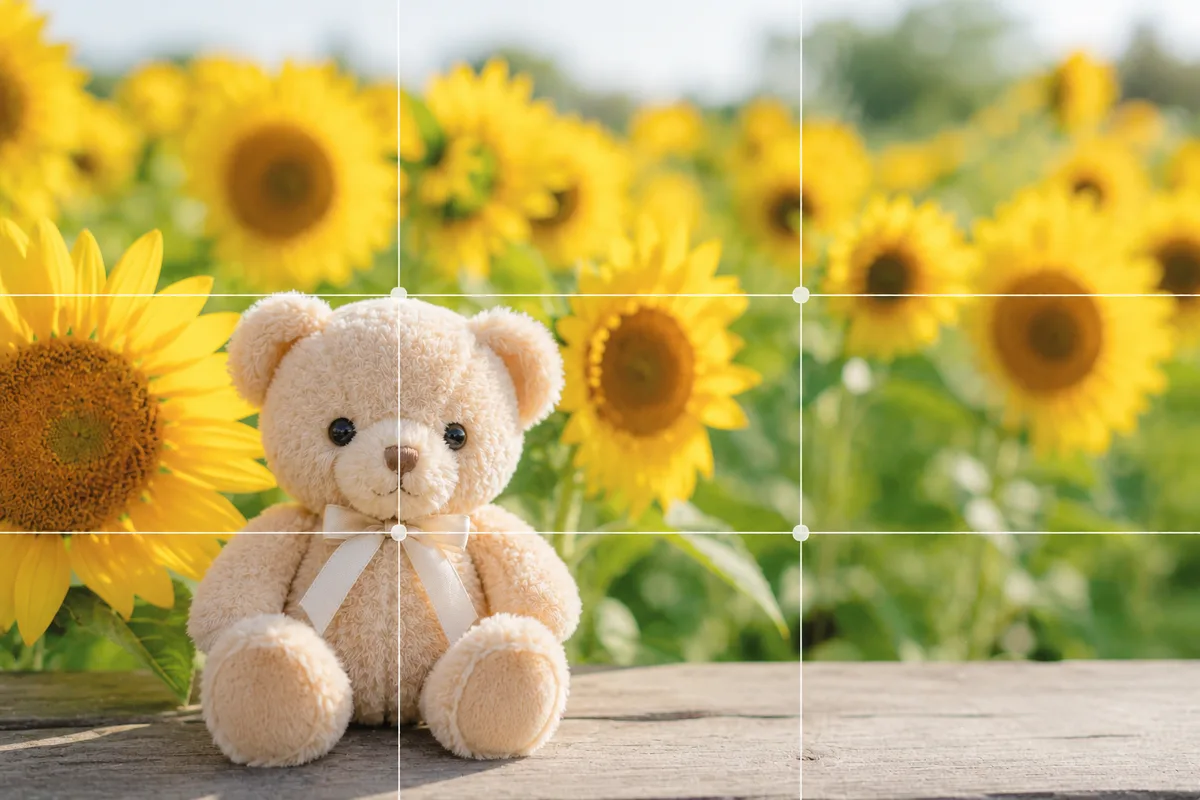
Photographing Plushies With Seasonal Flowers — When the Plush Gets Buried
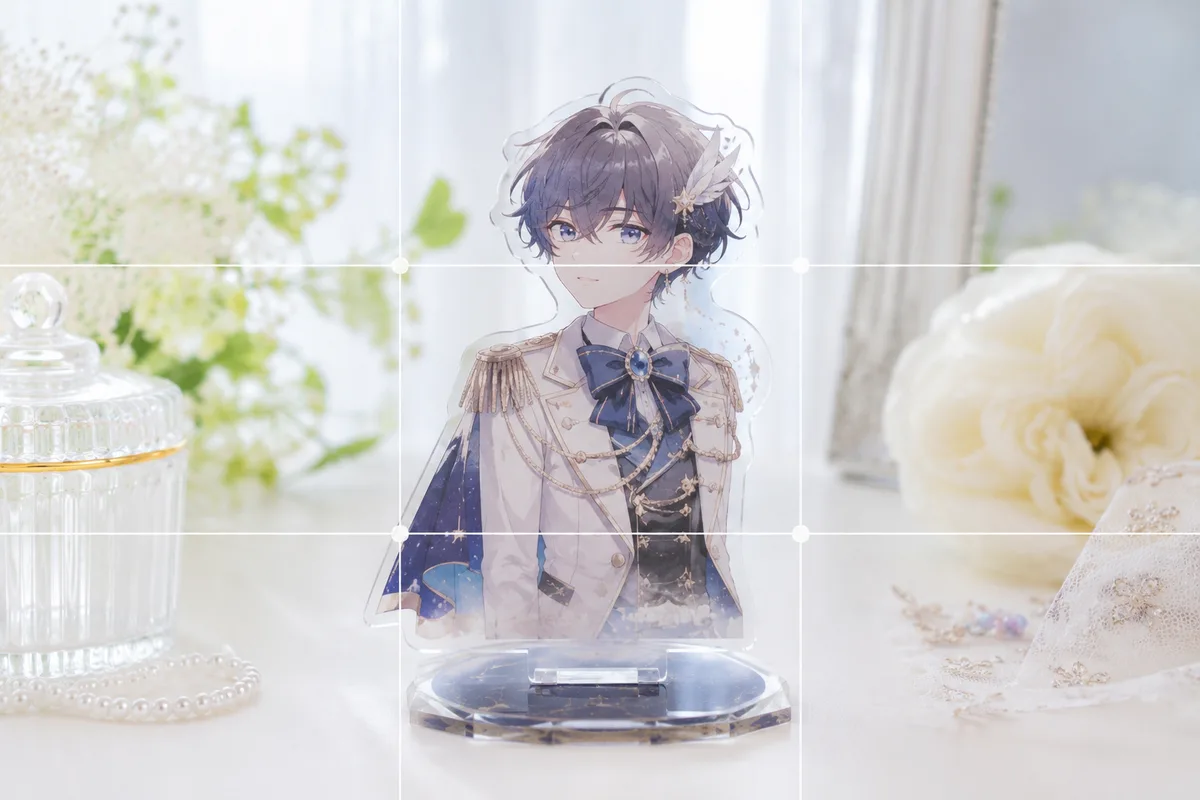
How to Photograph Fan Goods — Glare and Blur on Acrylic Stands & Photocards
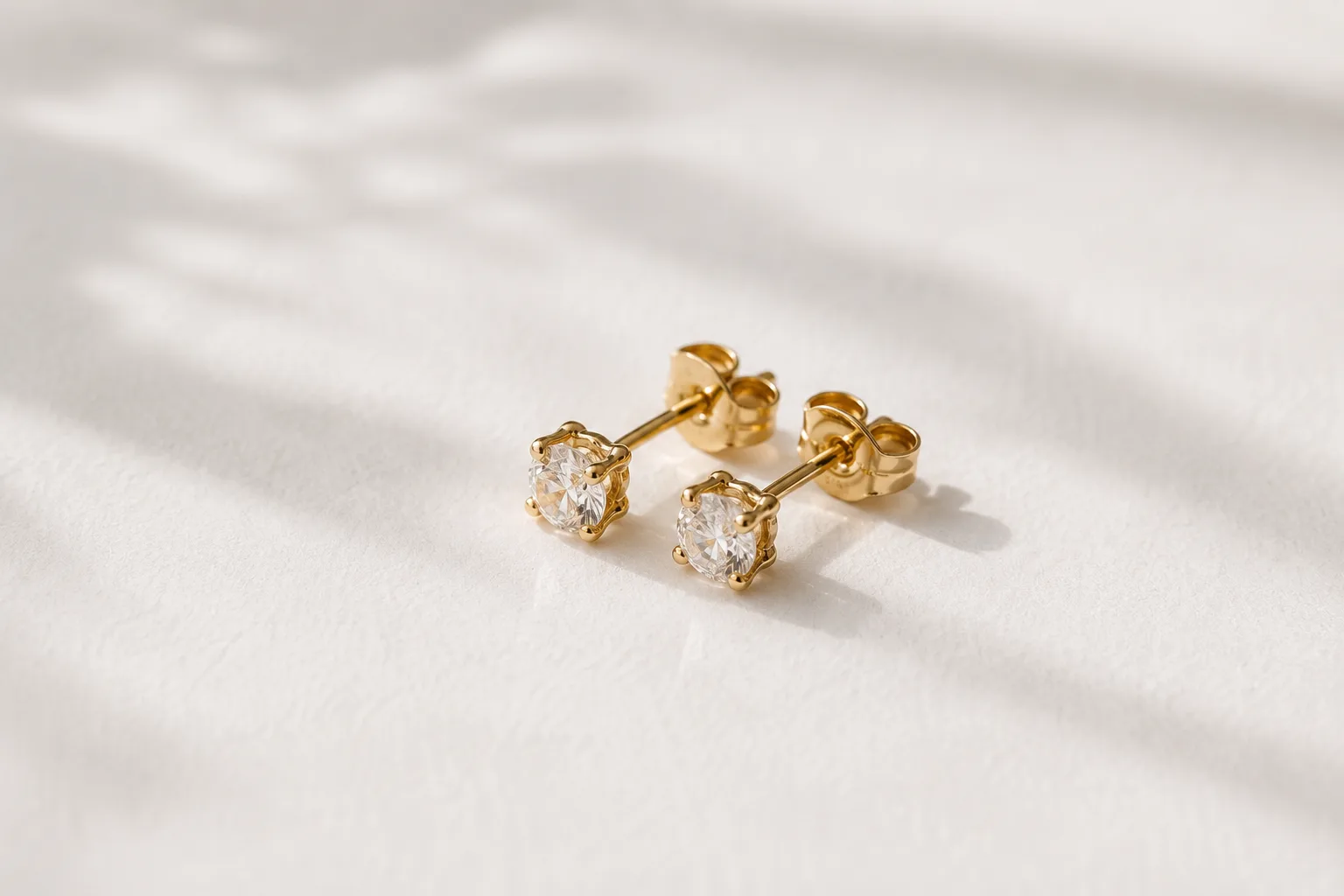
Composing Small Items and Accessories — Why They Look Dull and How to Fix It
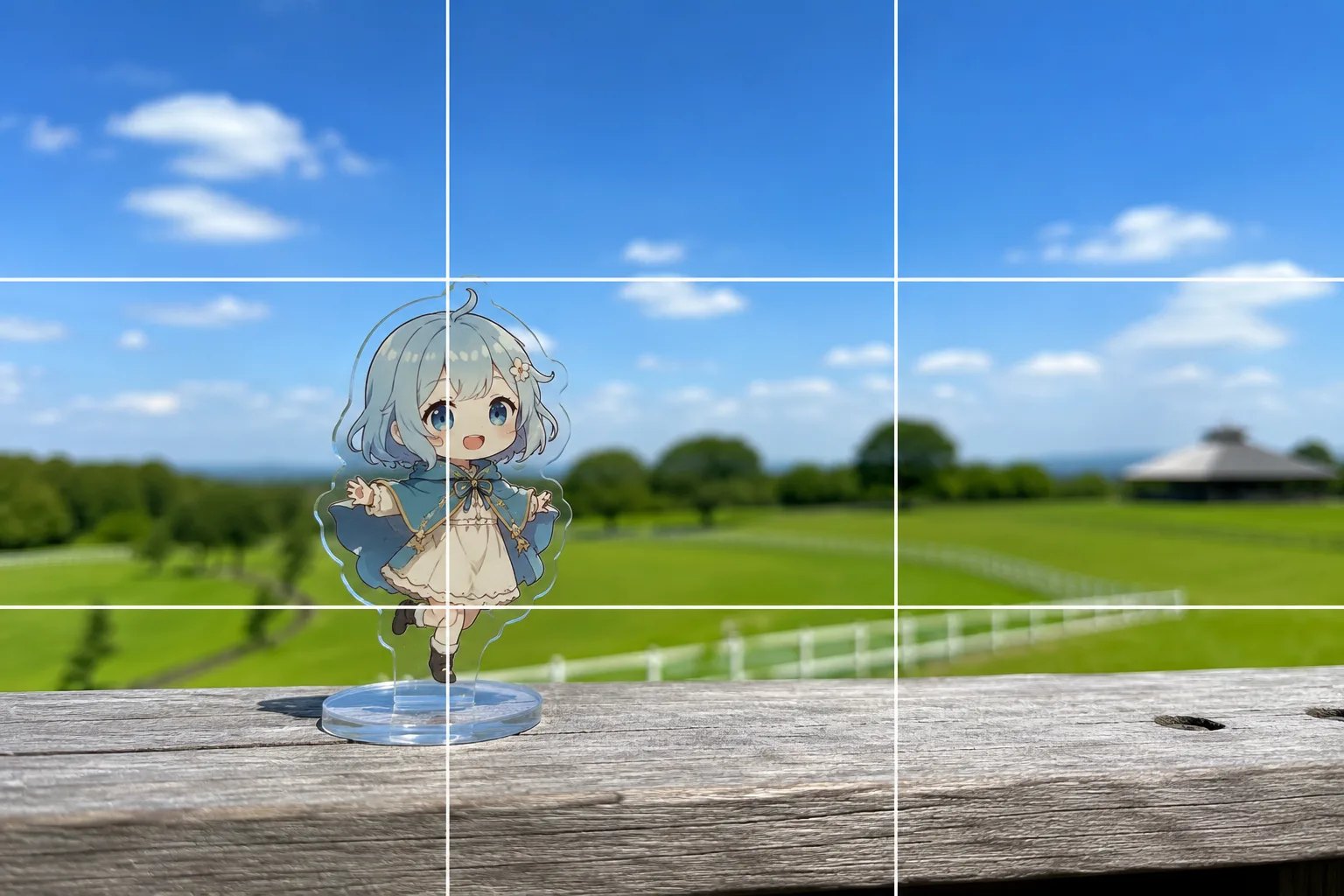
Acrylic Stand Photos With the Scenery — Focus Misses and Melting Edges, Fixed
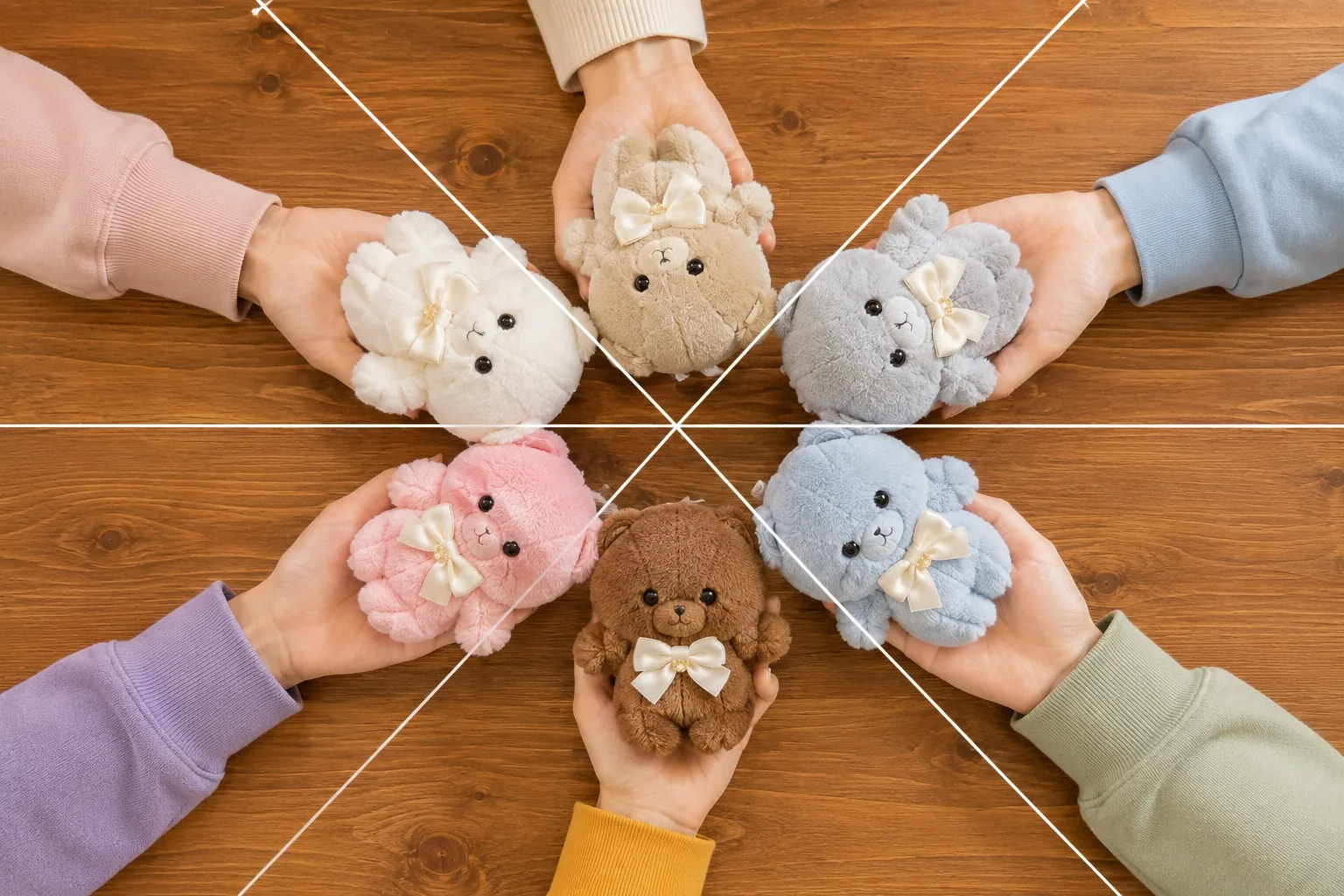
Group Goods Photos at Fan Meetups — Clutter, Shadows, and Uneven Layouts, Fixed